> ## Documentation Index
> Fetch the complete documentation index at: https://anaconda.com/docs/llms.txt
> Use this file to discover all available pages before exploring further.
# Scheduling deployments
noindex: true
If you want to [deploy a project](../deployments/main) on a regular
basis, Data Science & AI Workbench enables you to schedule the deployment. For example,
you can schedule a deployment that’s resource intensive to run after regular
business hours, or to import new data on a weekly basis.
A task that’s run via a scheduled deployment can read data previously
committed to the project from an editor session, but cannot be used to
commit any new data to it. **Any data written to a container for a scheduled
deployment will be deleted immediately after the associated task runs**, so
Anaconda recommends that you ensure data is read from and written to
[external data sources](../data/load).
**To schedule a deployment:**
1. Open the project you want to schedule a deployment for by clicking on it in
the **Projects** list.
2. Click **Schedules** in the menu on the left.
3. Click **New** if it’s the first schedule to be created for the project, or
the Schedule button if there are existing schedules.
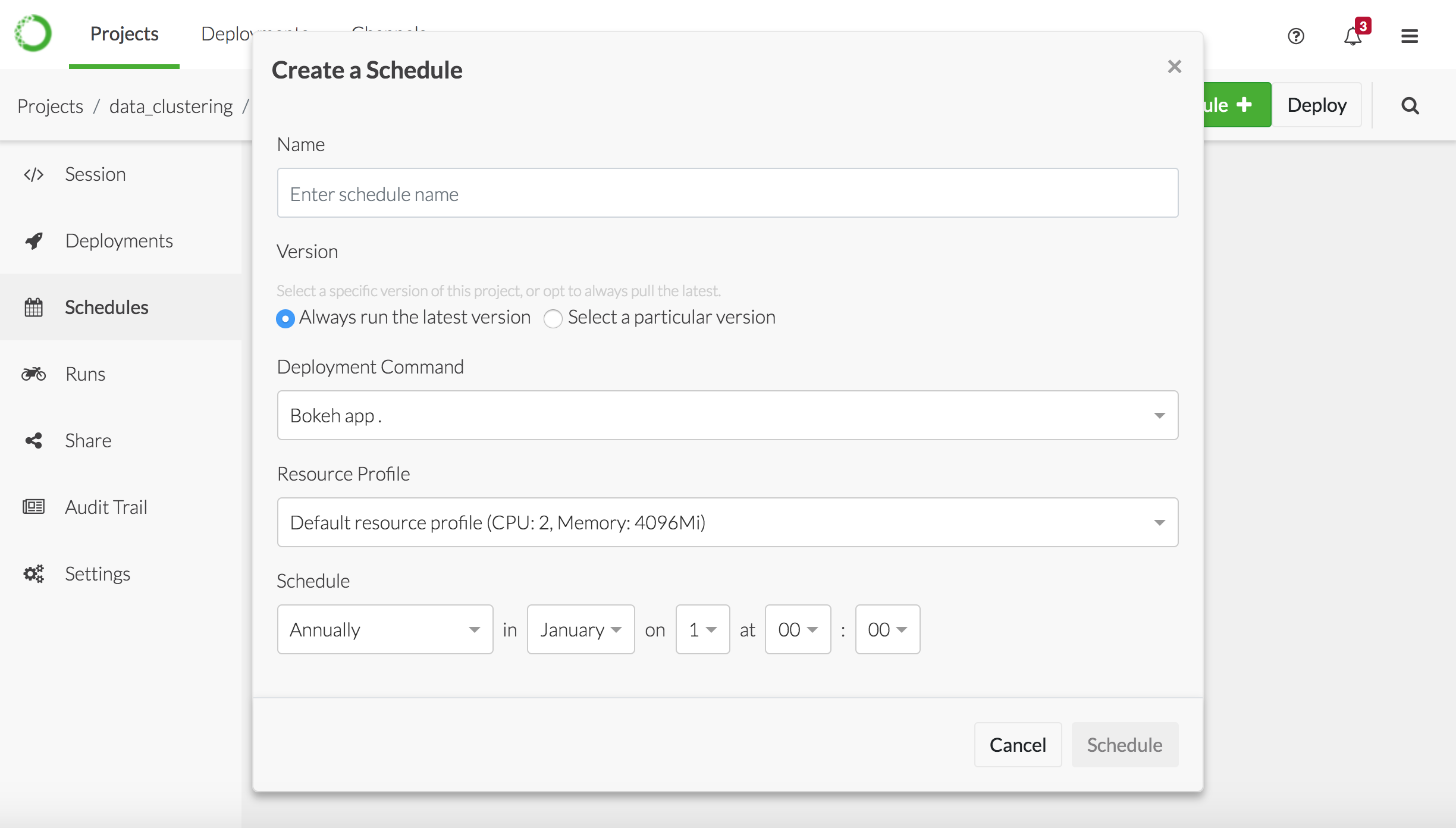 4. Give the schedule a meaningful name to help differentiate it from any other
schedules.
5. Specify whether you want to deploy the latest version of the project, or
select a particular version.
6. Specify the **Deployment Command** to use to deploy the project. If there is
no deployment command listed, you cannot deploy the project.
Return to the project and add a deployment command, or ask the project owner
to do so if it’s not your project. See [Configuring project settings](./project-config) for more information about adding deployment commands.
7. Choose the runtime resources your project requires to run from the
**Resource Profile** drop-down, or accept the default. Your Administrator
configures the options in this list, so check with them if you aren’t sure.
8. Use the controls to specify how often and when you want to schedule the
deployment, or select **Custom** and enter a valid `cron` expression.
All scheduled times are in UTC (Coordinated Universal Time).
Alternatively, if you want it to run *now*—instead of scheduling it—select **Run Now**.
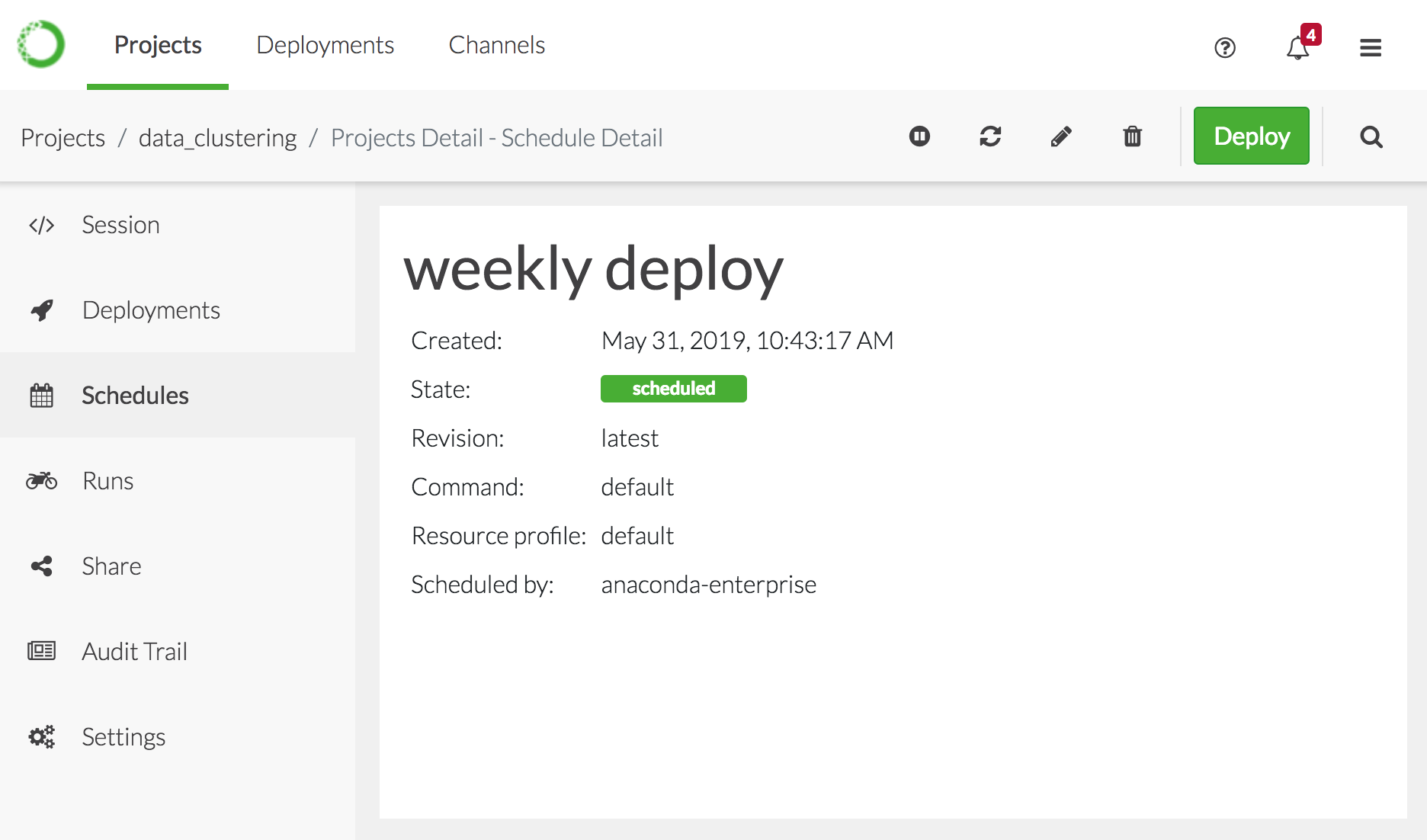
1. Click **Schedule** to create the schedule, and display it’s details. You can
use the available controls to pause, refresh, edit, or delete the schedule.
4. Give the schedule a meaningful name to help differentiate it from any other
schedules.
5. Specify whether you want to deploy the latest version of the project, or
select a particular version.
6. Specify the **Deployment Command** to use to deploy the project. If there is
no deployment command listed, you cannot deploy the project.
Return to the project and add a deployment command, or ask the project owner
to do so if it’s not your project. See [Configuring project settings](./project-config) for more information about adding deployment commands.
7. Choose the runtime resources your project requires to run from the
**Resource Profile** drop-down, or accept the default. Your Administrator
configures the options in this list, so check with them if you aren’t sure.
8. Use the controls to specify how often and when you want to schedule the
deployment, or select **Custom** and enter a valid `cron` expression.
All scheduled times are in UTC (Coordinated Universal Time).
Alternatively, if you want it to run *now*—instead of scheduling it—select **Run Now**.
1. Click **Schedule** to create the schedule, and display it’s details. You can
use the available controls to pause, refresh, edit, or delete the schedule.
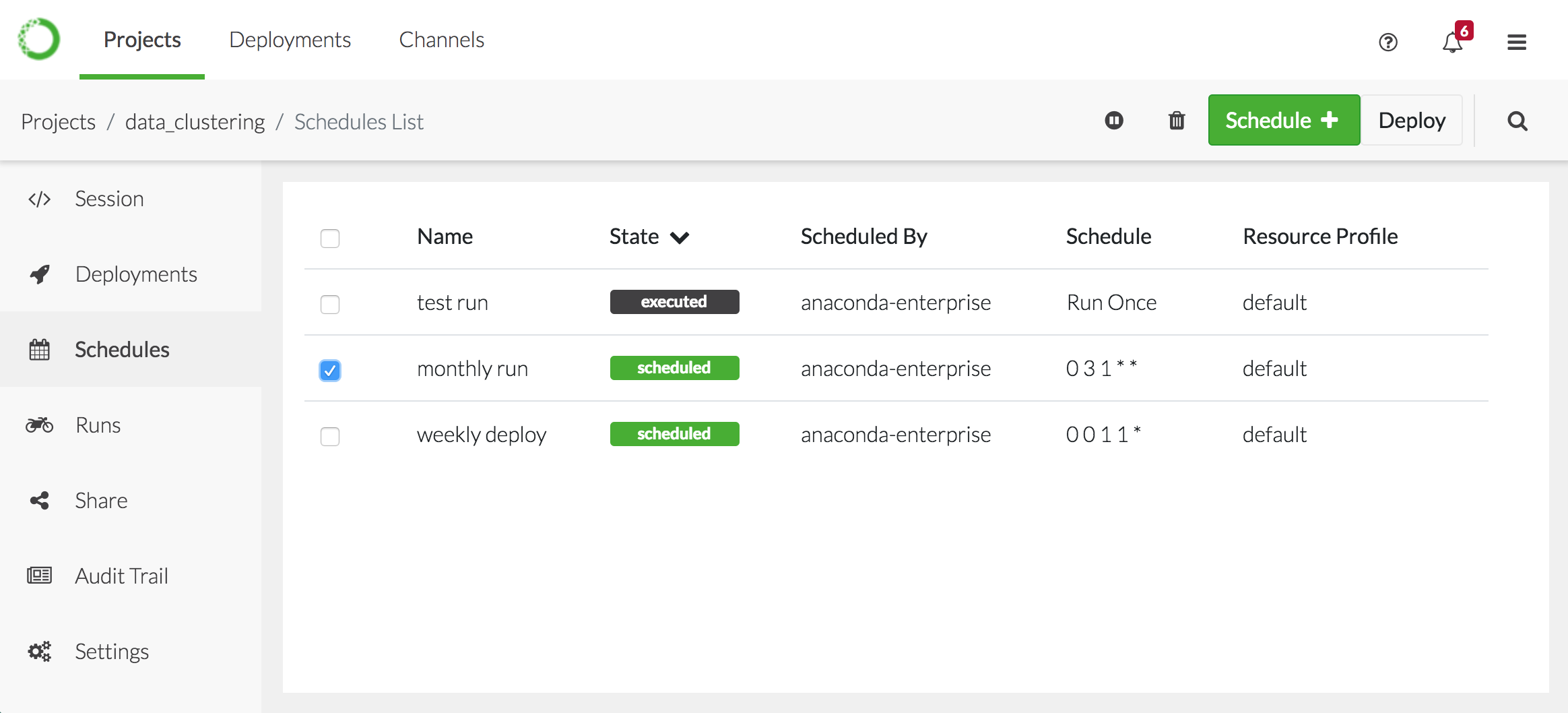
 2. To view the new schedule in the list of schedules for the project,
click **Schedules** in the menu on the left.
Use the controls above the **Schedules** list to pause or delete a selected
schedule, or click on a schedule in the list to view and edit its details.
Schedules that have already run can be deleted only, as there is nothing
to pause.
2. To view the new schedule in the list of schedules for the project,
click **Schedules** in the menu on the left.
Use the controls above the **Schedules** list to pause or delete a selected
schedule, or click on a schedule in the list to view and edit its details.
Schedules that have already run can be deleted only, as there is nothing
to pause.
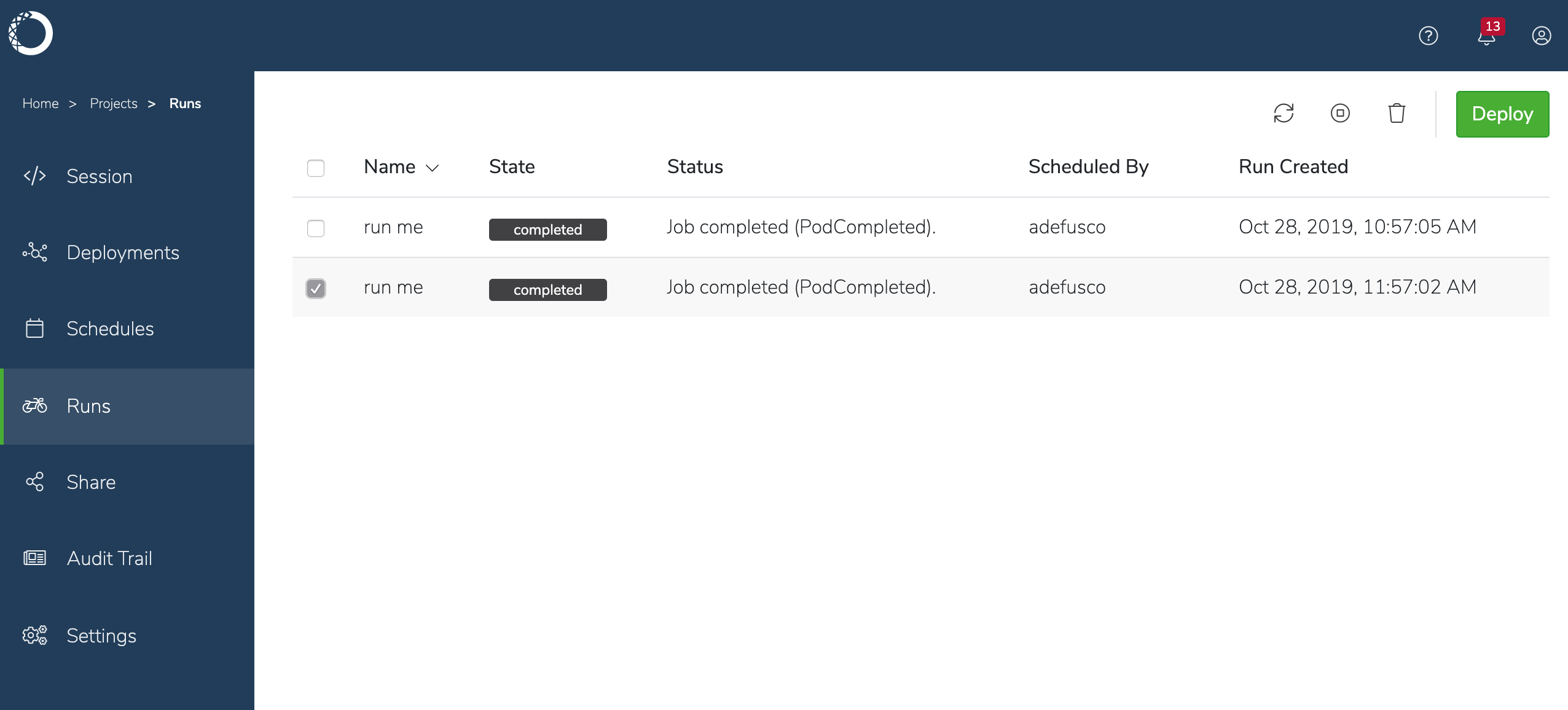
 To view a list of all the scheduled deployments that are currently running or
have already run, click **Runs** in the menu on the left.
To view a list of all the scheduled deployments that are currently running or
have already run, click **Runs** in the menu on the left.
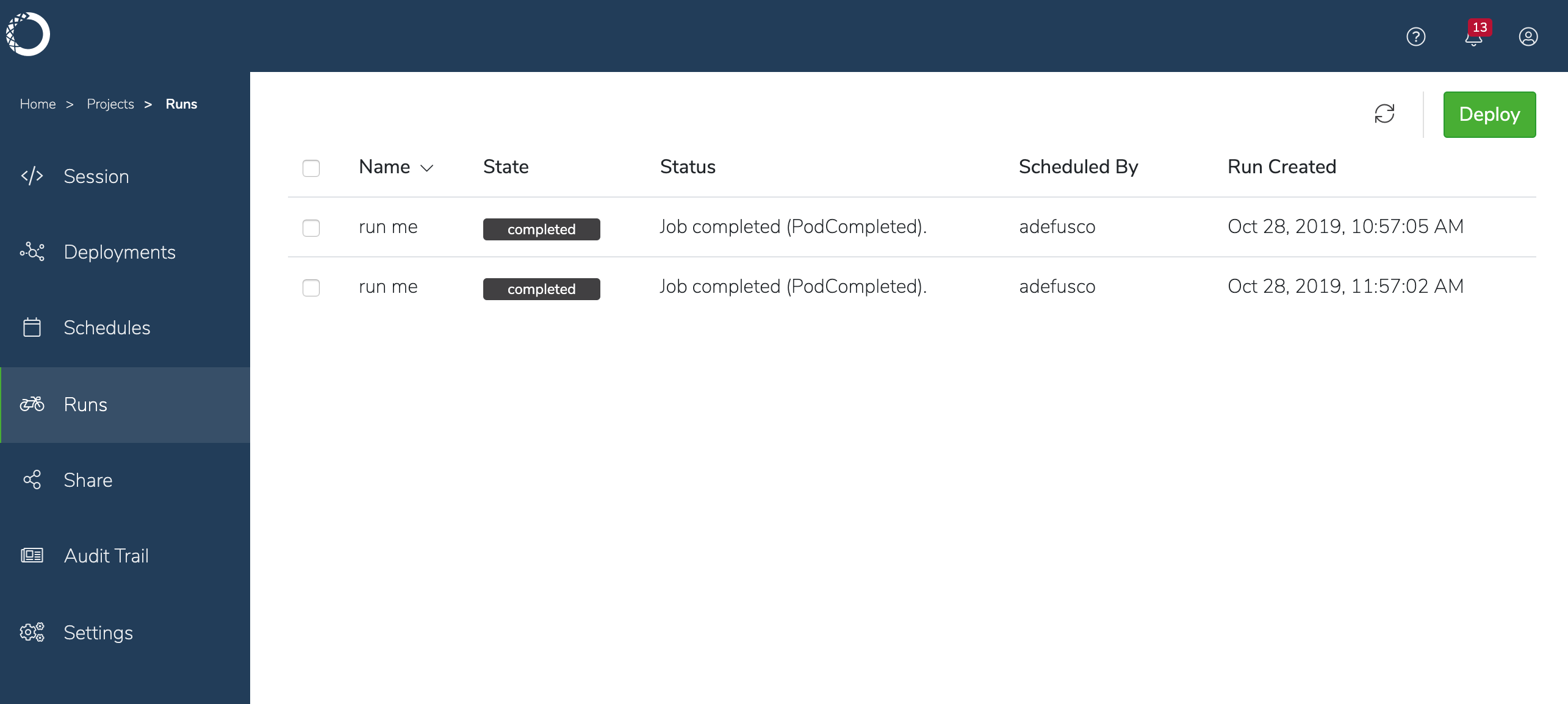 Select a specific run in the list to enable the controls to refresh, stop or
delete it.
Select a specific run in the list to enable the controls to refresh, stop or
delete it.