> ## Documentation Index
> Fetch the complete documentation index at: https://anaconda.com/docs/llms.txt
> Use this file to discover all available pages before exploring further.
# User settings
Data Science & AI Workbench allows you to maintain certain settings for your user account, based on how your system was configured by your administrator.
## Configuring user settings
To access your user account settings:
1. Open the **My account** dropdown menu in the top navigation, then select *Settings*.
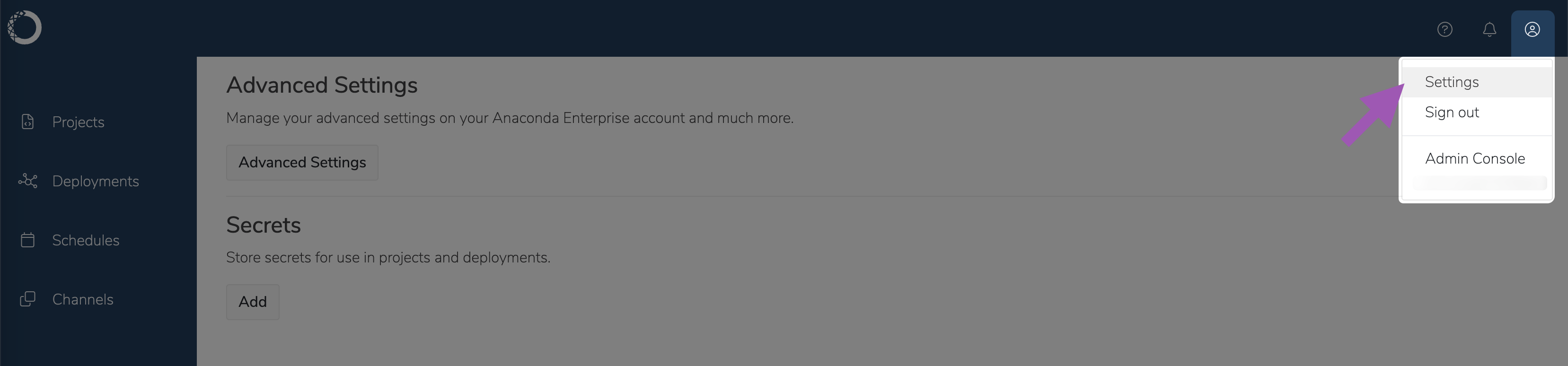 2. Click **Advanced Settings** to open your Keycloak account management page.
3. From the Keycloak account management page, you can modify the following settings:
Fields that you are not permitted to edit appear disabled.
### Personal info
Manage your basic information about your account, such as your username and email address.
### Account security
Change your account password and enable two-factor authentication.
### Applications
View a list of Workbench applications currently running and the permissions you have been granted for them.
2. Click **Advanced Settings** to open your Keycloak account management page.
3. From the Keycloak account management page, you can modify the following settings:
Fields that you are not permitted to edit appear disabled.
### Personal info
Manage your basic information about your account, such as your username and email address.
### Account security
Change your account password and enable two-factor authentication.
### Applications
View a list of Workbench applications currently running and the permissions you have been granted for them.