> ## Documentation Index
> Fetch the complete documentation index at: https://anaconda.com/docs/llms.txt
> Use this file to discover all available pages before exploring further.
# Sharing channels and packages
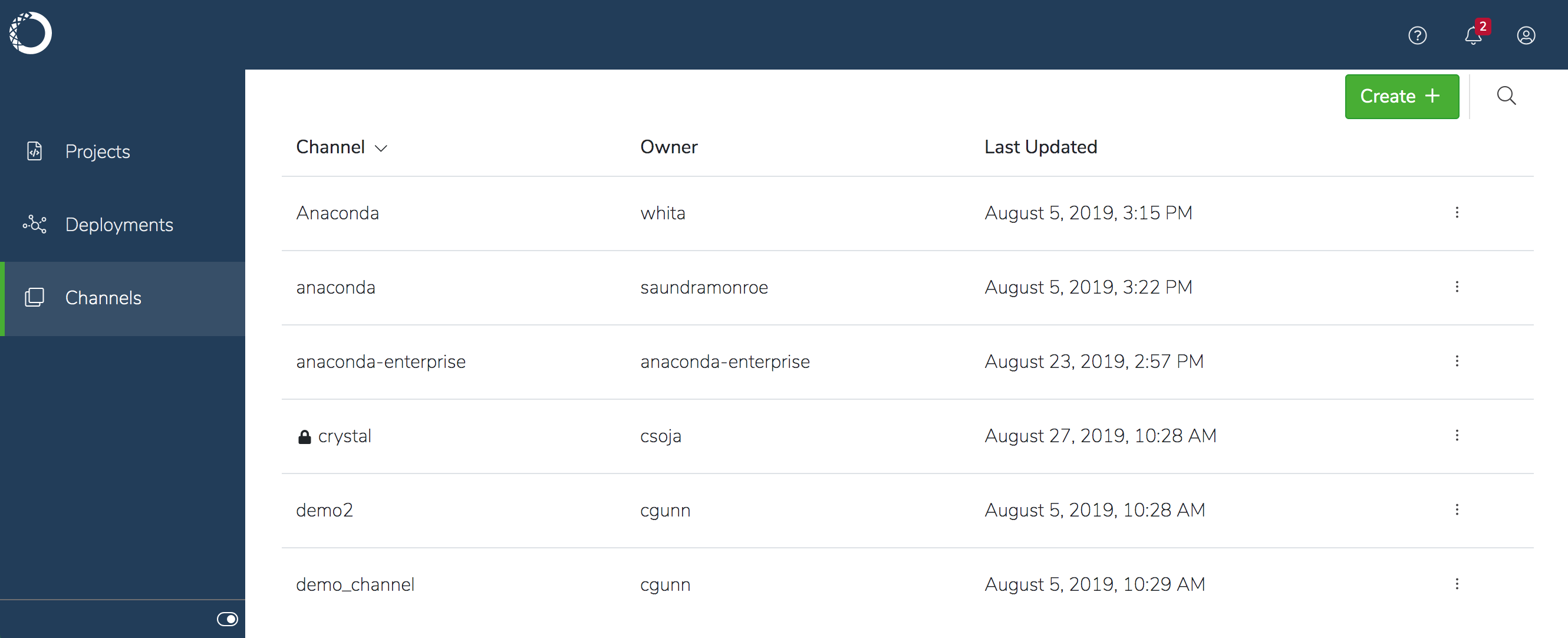
To share multiple packages with the same set of users, you can upload all of the packages to a channel and share that channel. This enables you to create channels for each type of user you support, and add the packages they need to each.
 The default is to grant collaborators *read-write* access, so if you want to prevent them from adding and removing packages from the channel, be sure they have *read-only* access. You’ll need to [use the CLI](#using-the-cli) to make a channel read-only.
## To share a channel with unauthenticated users:
1. Select the channel in the **Channels** list, and verify that the packages in the channel are all appropriate to share.
2. Click **Share** in the left menu.
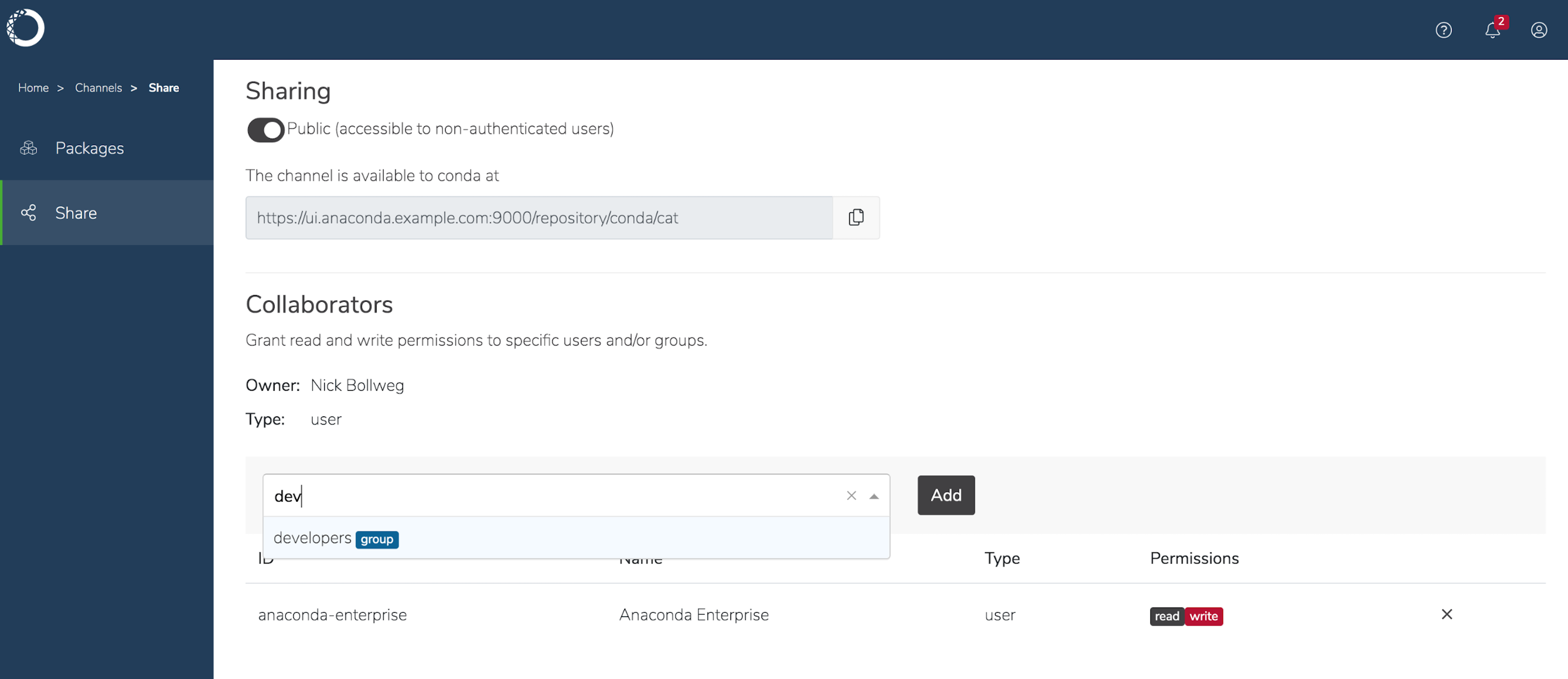
3. Ensure the channel is set to `Public`, copy the URL location of the channel, and distribute it to the people with whom you want to share the channel.
The default is to grant collaborators *read-write* access, so if you want to prevent them from adding and removing packages from the channel, be sure they have *read-only* access. You’ll need to [use the CLI](#using-the-cli) to make a channel read-only.
## To share a channel with unauthenticated users:
1. Select the channel in the **Channels** list, and verify that the packages in the channel are all appropriate to share.
2. Click **Share** in the left menu.
3. Ensure the channel is set to `Public`, copy the URL location of the channel, and distribute it to the people with whom you want to share the channel.
 ## To share a channel with other platform users:
1. Select the channel in the **Channels** list and verify that all the packages you want to share are listed.
2. Click **Share** in the left menu.
Channels are `Public`—accessible by non-authenticated users—by default. To make the channel `Private`, and therefore available to authenticated users only, disable the toggle to switch the channel setting from `Public` to `Private`.
3. Start typing the name of the user or group in the **Add New Collaborator** drop-down to search for matches. Select the option that corresponds to what you want. You can add multiple users or groups at the same time.
4. Click **Add** when you’re satisfied with your selections.
## To share a channel with other platform users:
1. Select the channel in the **Channels** list and verify that all the packages you want to share are listed.
2. Click **Share** in the left menu.
Channels are `Public`—accessible by non-authenticated users—by default. To make the channel `Private`, and therefore available to authenticated users only, disable the toggle to switch the channel setting from `Public` to `Private`.
3. Start typing the name of the user or group in the **Add New Collaborator** drop-down to search for matches. Select the option that corresponds to what you want. You can add multiple users or groups at the same time.
4. Click **Add** when you’re satisfied with your selections.
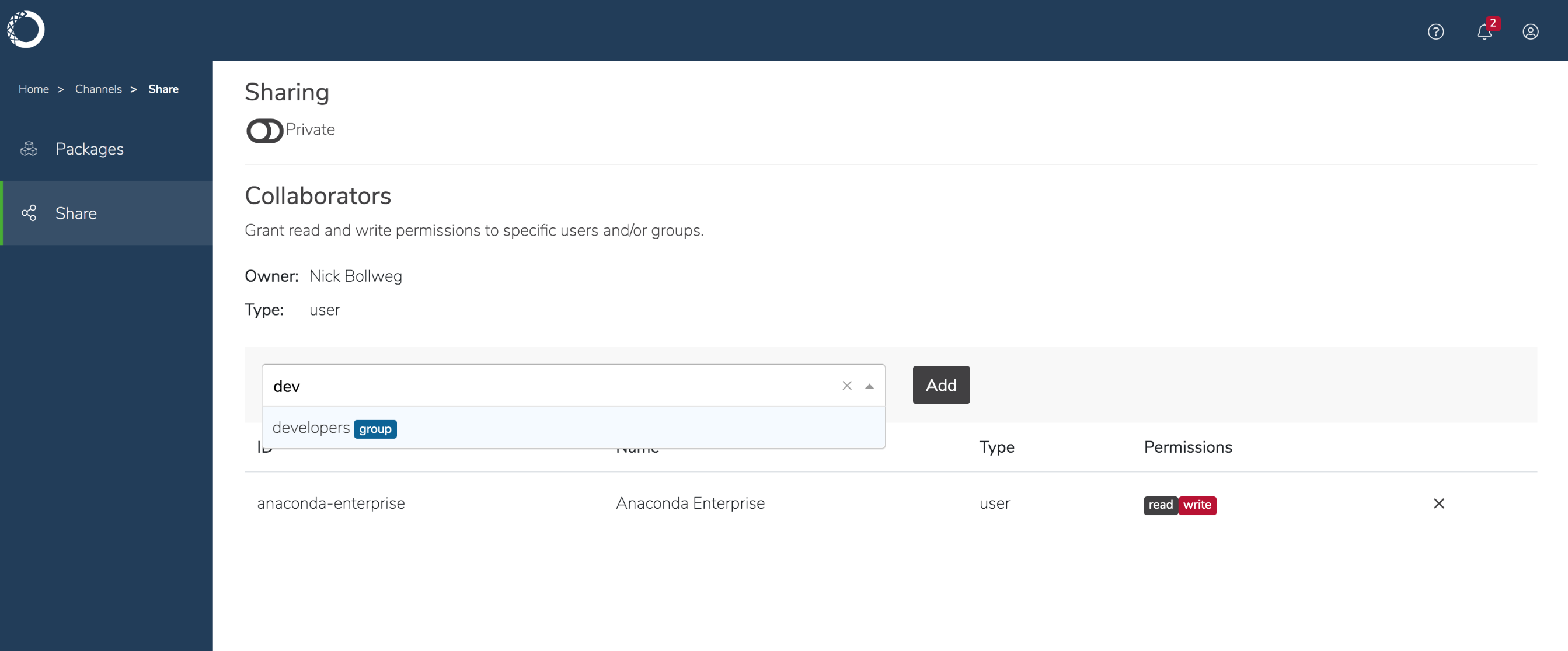 To “unshare” a channel with a collaborator, simply click the large **X** next to the right of their name in the **Collaborator** list.
## Using the CLI:
Get a list of all the channels on the platform with the `channels list` command:
```
anaconda-enterprise-cli channels list
```
Share a channel with a specific user using the `share` command:
```
anaconda-enterprise-cli channels share --user username --level r
```
You can also share a channel with an existing group created by your Administrator:
```
anaconda-enterprise-cli channels share --group GROUPNAME --level r
```
Replacing GROUPNAME with the actual name of your group.
Adding `--level r` grants this group read-only access to the channel.
You can “unshare” a channel using the following command:
```
anaconda-enterprise-cli channels share --user --remove
```
Run `anaconda-enterprise-cli channels --help` to see more information about
what you can do with channels.
For help with a specific command, enter that command followed by `--help`:
```
anaconda-enterprise-cli channels share --help
```
To “unshare” a channel with a collaborator, simply click the large **X** next to the right of their name in the **Collaborator** list.
## Using the CLI:
Get a list of all the channels on the platform with the `channels list` command:
```
anaconda-enterprise-cli channels list
```
Share a channel with a specific user using the `share` command:
```
anaconda-enterprise-cli channels share --user username --level r
```
You can also share a channel with an existing group created by your Administrator:
```
anaconda-enterprise-cli channels share --group GROUPNAME --level r
```
Replacing GROUPNAME with the actual name of your group.
Adding `--level r` grants this group read-only access to the channel.
You can “unshare” a channel using the following command:
```
anaconda-enterprise-cli channels share --user --remove
```
Run `anaconda-enterprise-cli channels --help` to see more information about
what you can do with channels.
For help with a specific command, enter that command followed by `--help`:
```
anaconda-enterprise-cli channels share --help
```