> ## Documentation Index
> Fetch the complete documentation index at: https://anaconda.com/docs/llms.txt
> Use this file to discover all available pages before exploring further.
# Using installers, parcels and management packs
In addition to Anaconda and Miniconda installers, your administrator may create custom installers, Cloudera Manager parcels, or Hortonworks Data Manager management packs for you and your colleagues to use. They make these specific packages and their dependencies available to you via *channels*.
To view the installers available to you, navigate to the **Channels** menu, then click the **Installers** link in the top-right corner.
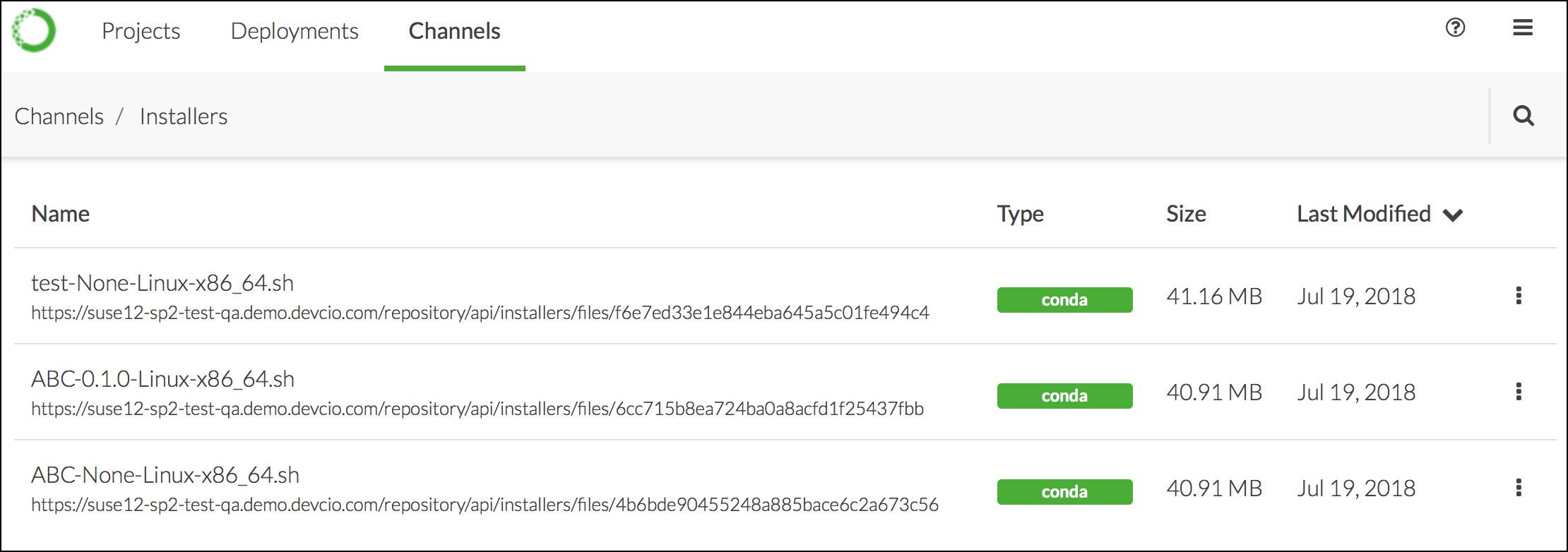 To download an installer, click on its name in the list.
Note
If you don’t see an installer that you expected to see, please contact your administrator and ask them to [generate the installer](../admin/custom-installer) you need.
## Working with Cloudera Data Platform (CDP) parcels
When working with CDP, create a parcel containing the conda environment you have created, then import the parcel into your CDP cluster.
1. Create the environment.
To download an installer, click on its name in the list.
Note
If you don’t see an installer that you expected to see, please contact your administrator and ask them to [generate the installer](../admin/custom-installer) you need.
## Working with Cloudera Data Platform (CDP) parcels
When working with CDP, create a parcel containing the conda environment you have created, then import the parcel into your CDP cluster.
1. Create the environment.
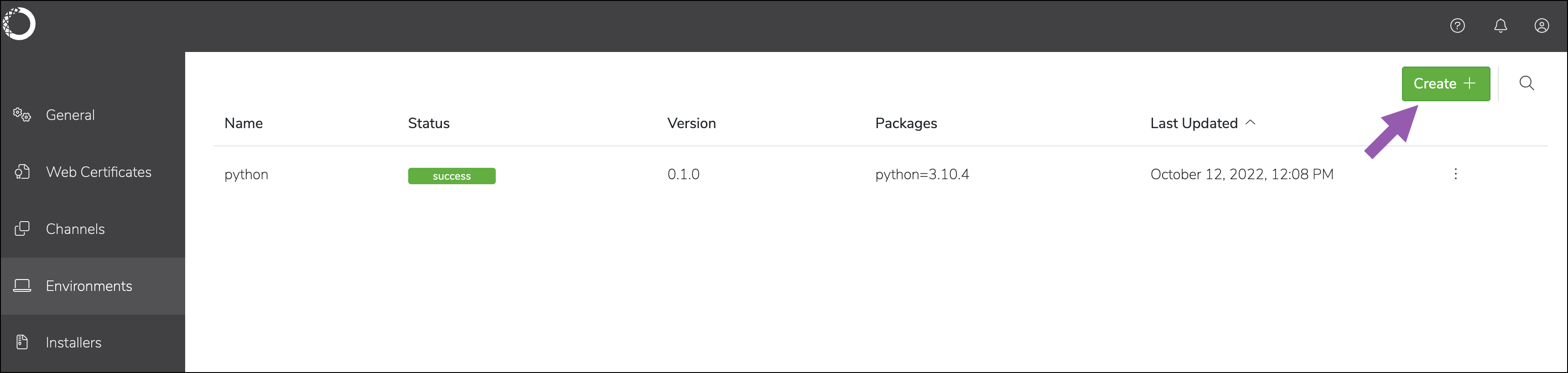 2. Create the parcel.
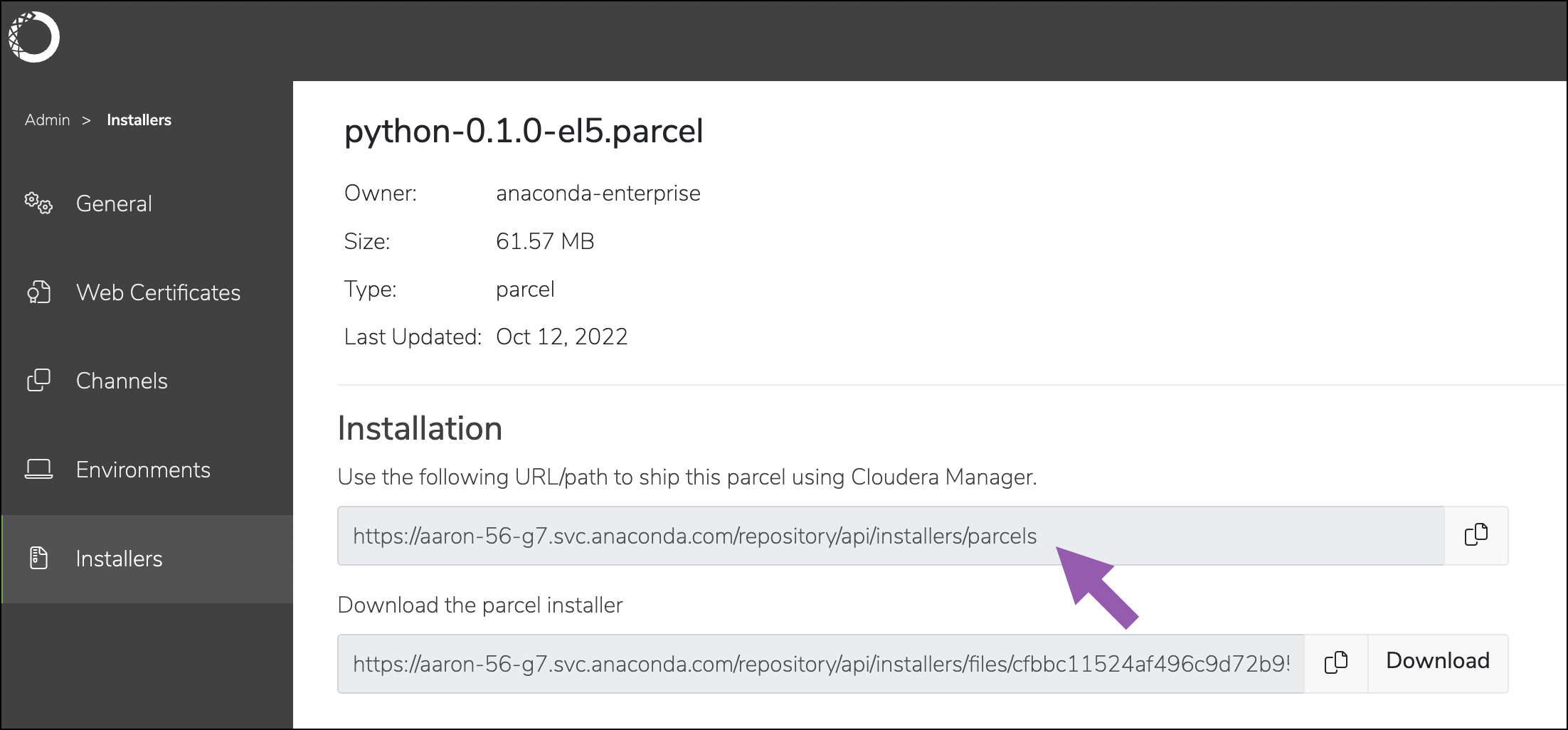
 3. Retrieve the URL used for importing the parcel into CDP.
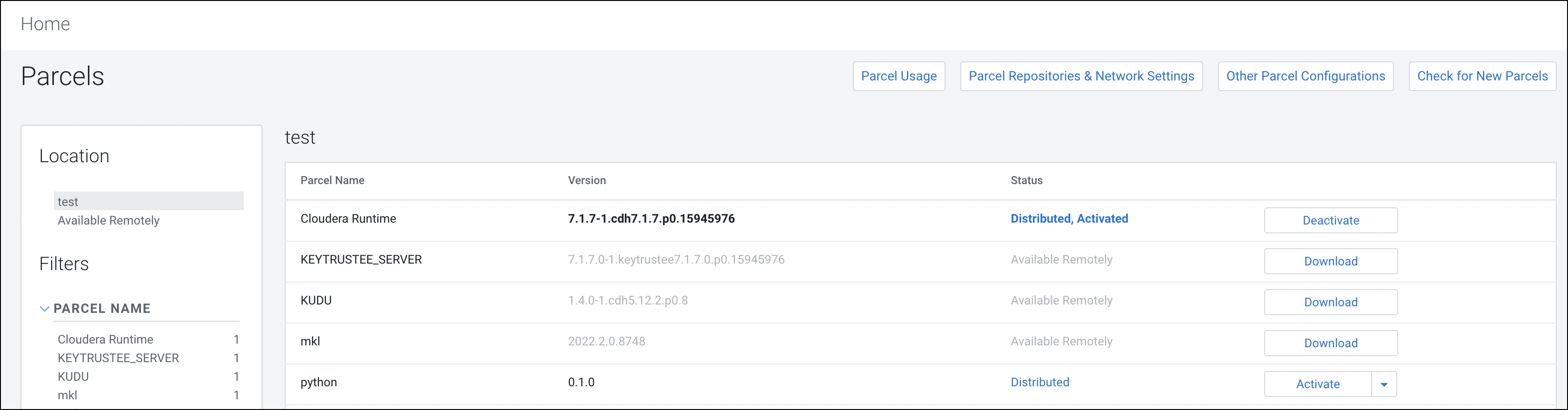
 4. Add the URL to the CDP parcel configuration.
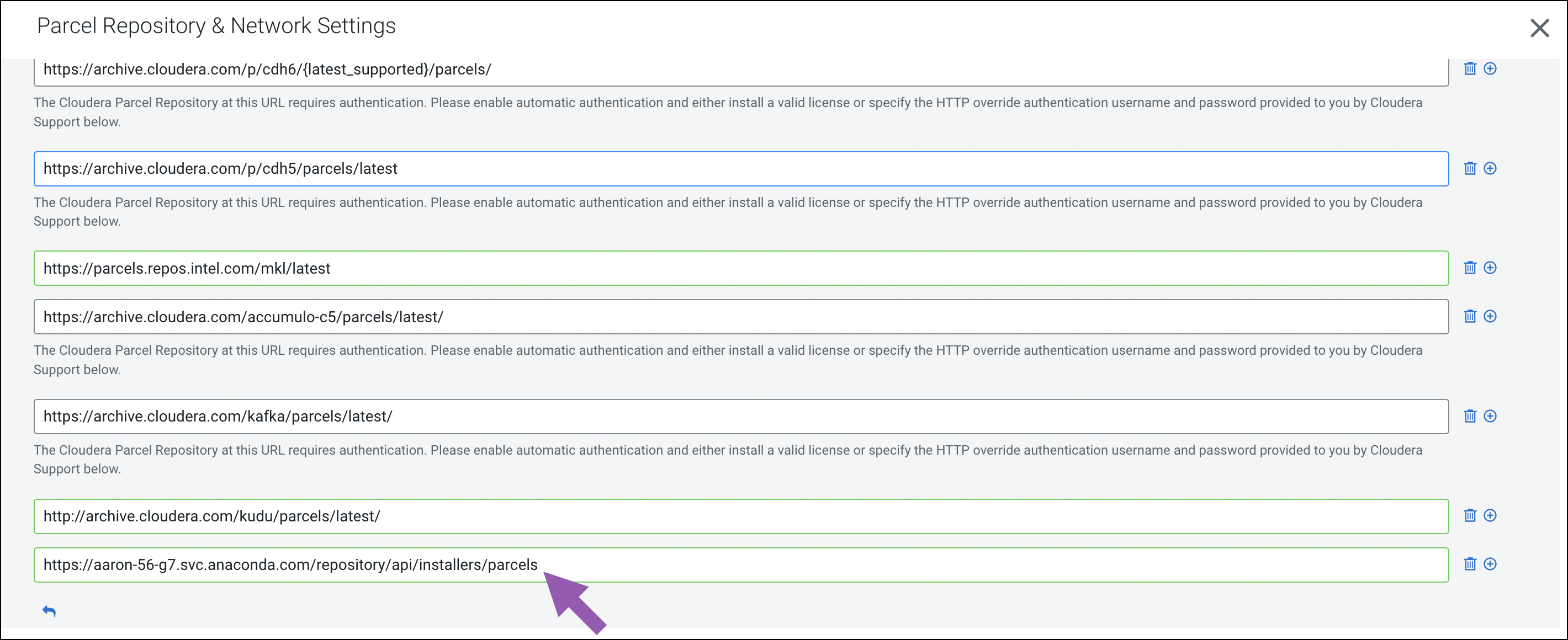 5. Save your changes, check for new parcels, and download the new parcel.