> ## Documentation Index
> Fetch the complete documentation index at: https://anaconda.com/docs/llms.txt
> Use this file to discover all available pages before exploring further.
# Configuring session timeouts
As an Administrator, you can configure session timeouts for Data Science & AI Workbench platform users, to help you adhere to your organization’s security standards or enforce policies.
You’ll use the Administrative Console’s [Authentication Center](../consoles#the-authentication-center) to set the various parameters related to session timeouts:
1. Login to Workbench, click the **Menu** icon in the top right corner, then click the **Administrative Console** link in the bottom of the slideout menu.
2. Click **Manage Users**.
3. Login to the Authentication Center using the Administrator credentials required to be able to access it.
4. In the Configure menu on the left, select **Realm Setting**.
5. Click the **Tokens** tab at the top to display the following:
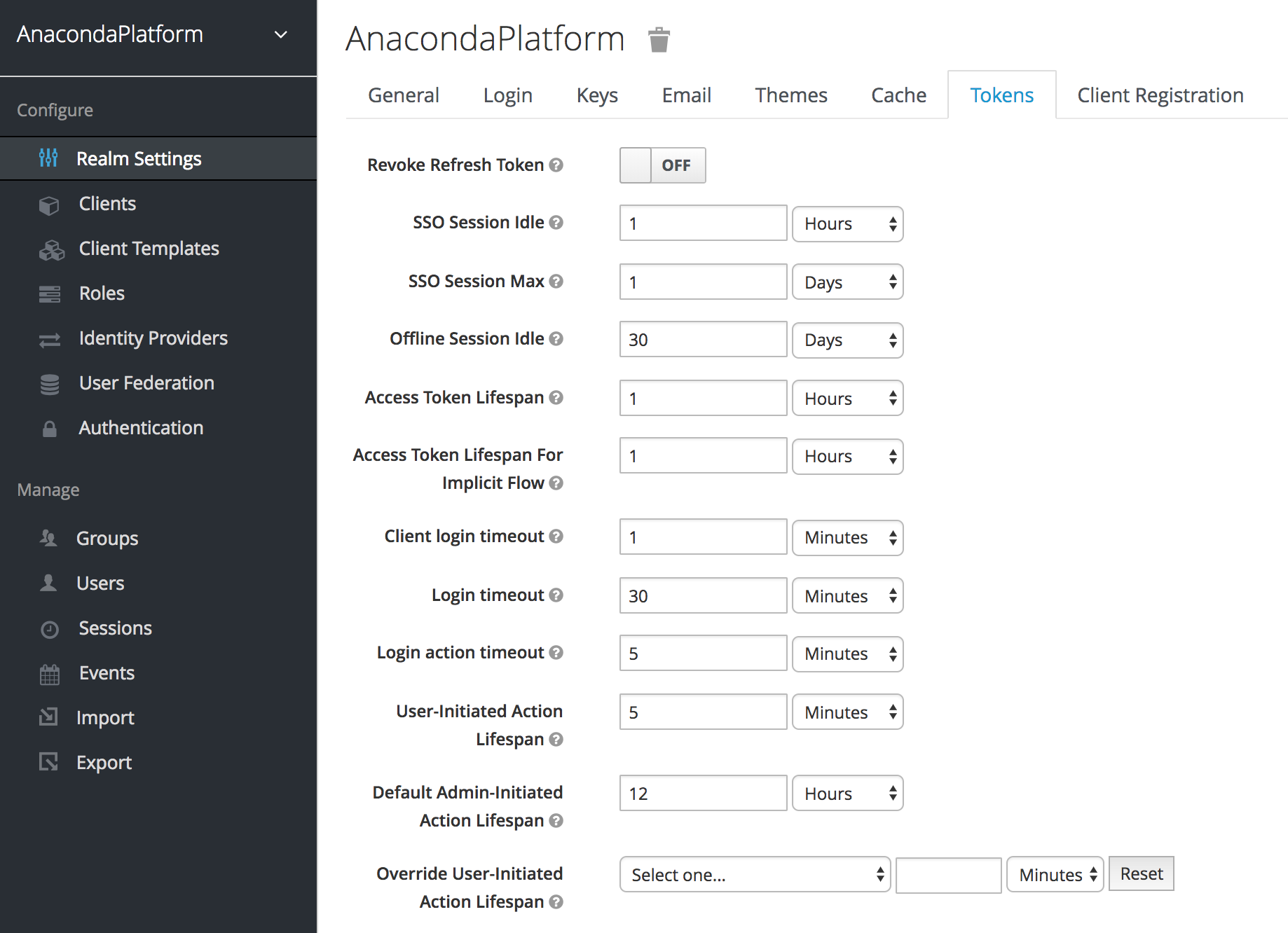 6. Use the available configuration options to specify maximum thresholds for each aspect of user sessions, including the following:
* Time limits for idle browser sessions and single sign on (SSO) tokens
* Lifespans for OpenID access tokens
* Time limits for login-related actions, such as resetting a forgotten password
| Configuration option | Description |
| :-------------------------------------- | :--------------------------------------------------------------------------------------- |
| Revoke Refresh Token | If enabled, limits refresh tokens to one-time use |
| SSO Session Idle | User will be logged out of session if inactive for this length of time |
| SSO Session Max | Maximum time a user session can remain active, regardless of activity |
| Offline Session Idle | Amount of time an offline session can be idle before the access token is revoked |
| Access Token Lifespan | Amount of time an access token will remain valid, before expiring |
| Access Token Lifespan For Implicit Flow | Timeout for access tokens created with Implicit Flow—no refresh token is provided |
| Client login timeout | Maximum time a client can take to complete the authorization process |
| Login timeout | Maximum time a user can take to authenticate before the process restarts |
| Login action timeout | Maximum time a user can spend on any one page in the authentication process |
| User-Initiated Action Lifespan | Maximum time before a user-initiated action (for example, forgot password email) expires |
| Default Admin-Initiated Action Lifespan | Maximum time before an admin-initiated action (for example, issue token to user) expires |
| Override User-Initiated Action Lifespan | Use to optionally configure different timeouts for each user-initiated action |
7. Click **Save** to save your changes to the Workbench platform.
6. Use the available configuration options to specify maximum thresholds for each aspect of user sessions, including the following:
* Time limits for idle browser sessions and single sign on (SSO) tokens
* Lifespans for OpenID access tokens
* Time limits for login-related actions, such as resetting a forgotten password
| Configuration option | Description |
| :-------------------------------------- | :--------------------------------------------------------------------------------------- |
| Revoke Refresh Token | If enabled, limits refresh tokens to one-time use |
| SSO Session Idle | User will be logged out of session if inactive for this length of time |
| SSO Session Max | Maximum time a user session can remain active, regardless of activity |
| Offline Session Idle | Amount of time an offline session can be idle before the access token is revoked |
| Access Token Lifespan | Amount of time an access token will remain valid, before expiring |
| Access Token Lifespan For Implicit Flow | Timeout for access tokens created with Implicit Flow—no refresh token is provided |
| Client login timeout | Maximum time a client can take to complete the authorization process |
| Login timeout | Maximum time a user can take to authenticate before the process restarts |
| Login action timeout | Maximum time a user can spend on any one page in the authentication process |
| User-Initiated Action Lifespan | Maximum time before a user-initiated action (for example, forgot password email) expires |
| Default Admin-Initiated Action Lifespan | Maximum time before an admin-initiated action (for example, issue token to user) expires |
| Override User-Initiated Action Lifespan | Use to optionally configure different timeouts for each user-initiated action |
7. Click **Save** to save your changes to the Workbench platform.