> ## Documentation Index
> Fetch the complete documentation index at: https://anaconda.com/docs/llms.txt
> Use this file to discover all available pages before exploring further.
# Managing channels and packages
export const Danger = ({children}) => {
return ;
};
Data Science & AI Workbench makes it easy for you to manage the various channels and packages used by your organization—whether you prefer using the UI or the CLI.
1. Log in to the console using the Administrator credentials required to access [the Administrative Console](../consoles#the-administrative-console).
2. Select **Channels** in the left menu to view the list of existing channels, each channel’s owner and when the channel was last updated.
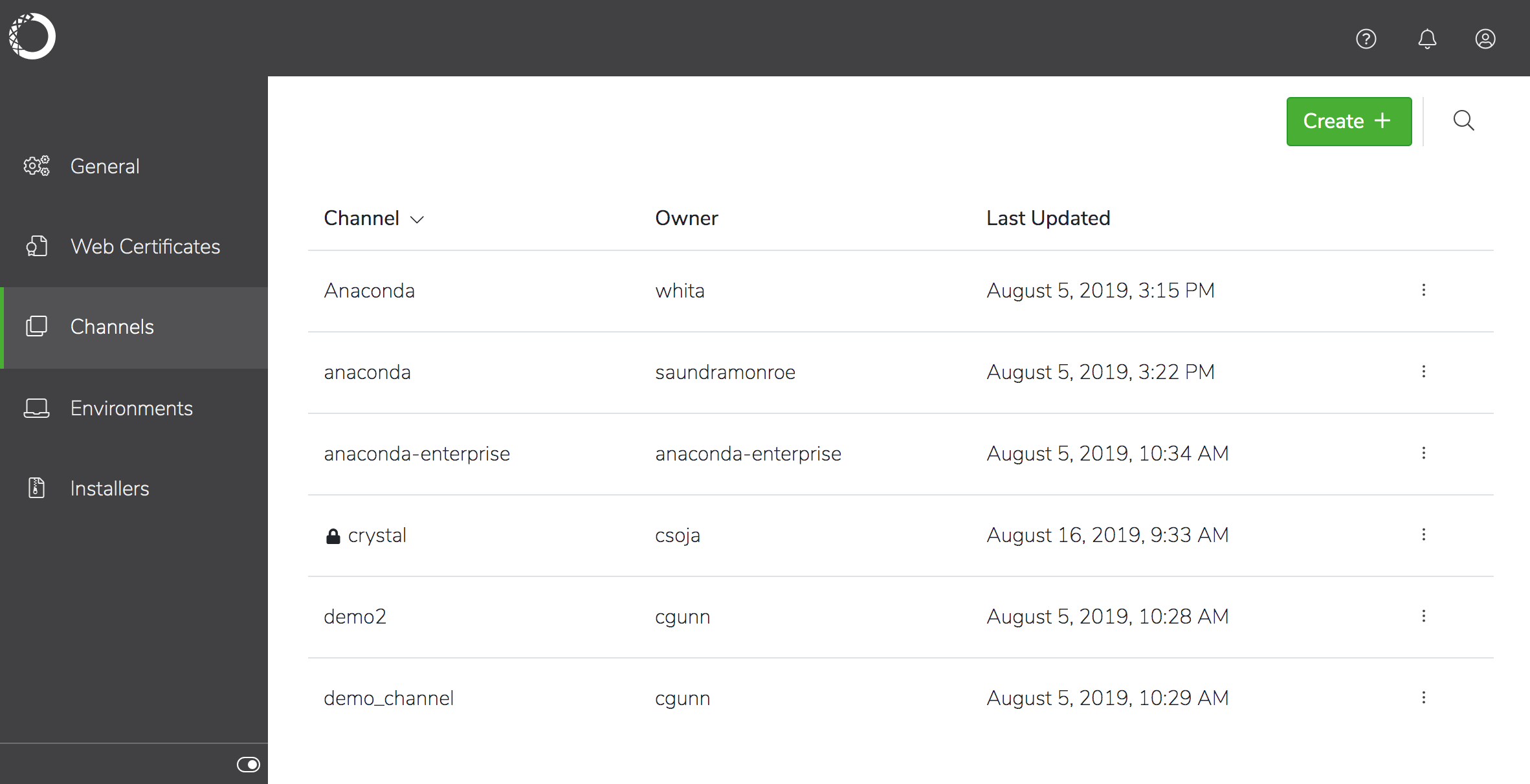 Private channels are displayed with a lock next to their name in the list, to indicate their secure status.
3. Click on a *channel* name to view details about the packages in the channel, including the supported platforms, versions and when each package in the channel was last modified. You can also see the number of times each package has been downloaded.
Private channels are displayed with a lock next to their name in the list, to indicate their secure status.
3. Click on a *channel* name to view details about the packages in the channel, including the supported platforms, versions and when each package in the channel was last modified. You can also see the number of times each package has been downloaded.
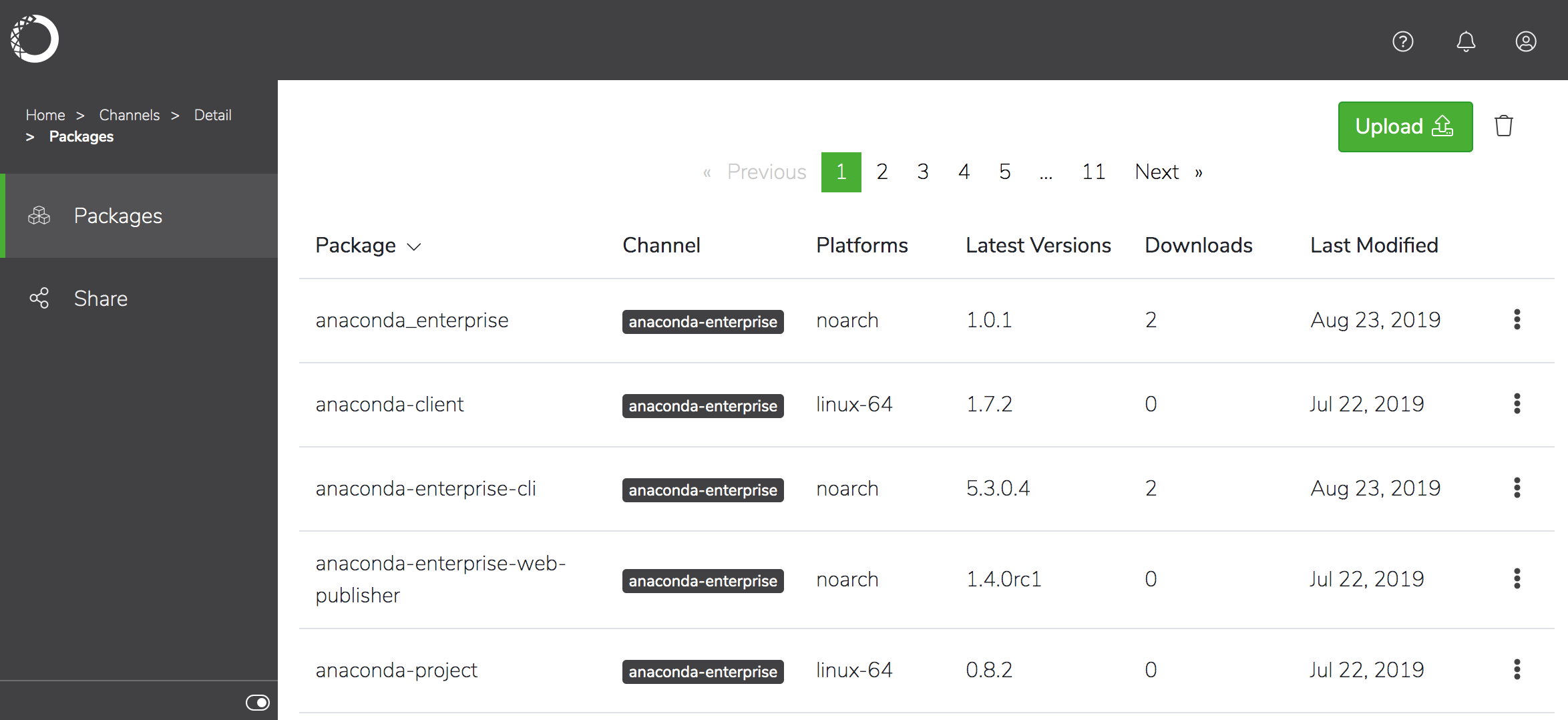 4. To add a package to an existing channel, click **Upload** and browse for the package.
There is a 1GB file size limit for package files you upload.
5. Click on a *package* name to view the list of files that comprise the package, and the command used to install the package.
4. To add a package to an existing channel, click **Upload** and browse for the package.
There is a 1GB file size limit for package files you upload.
5. Click on a *package* name to view the list of files that comprise the package, and the command used to install the package.
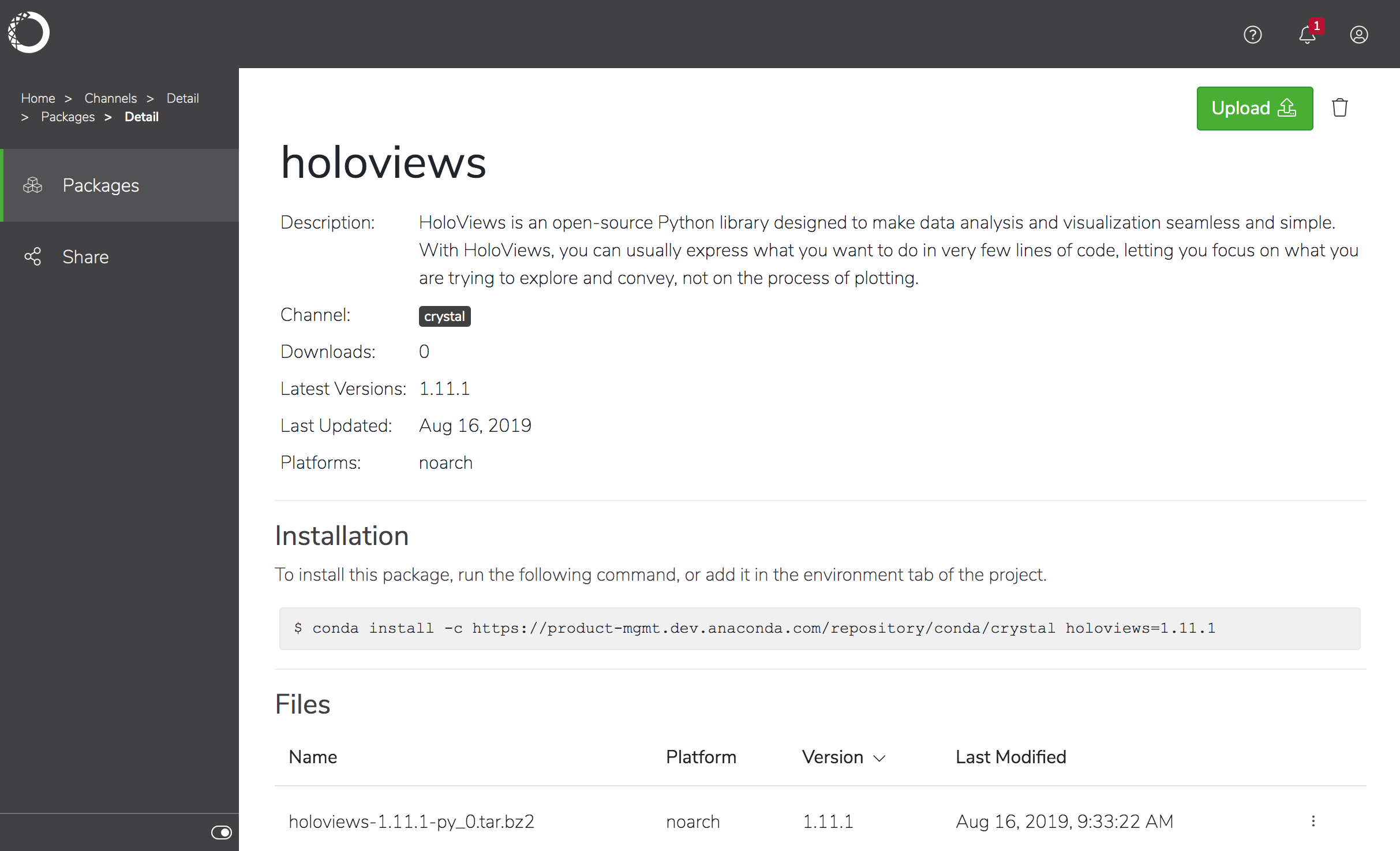 6. To remove a package from a channel, select **Delete** from the command menu for the package in the list.
Do not modify the `anaconda-enterprise` channel. Modifications to this channel can cause serious problems for the platform.
***
## Sharing channels
*To share a public channel*, click **Share**, copy the URL location of the channel, and distribute it to the people with whom you want to share the channel.
*To give other platform users read-write access to the channel*, click **Share** and add them as a collaborator. You can share a channel with individual users or groups of users—the easiest way to control access to a channel. See [Roles and groups](../user-mgmt/groups) for more information.
6. To remove a package from a channel, select **Delete** from the command menu for the package in the list.
Do not modify the `anaconda-enterprise` channel. Modifications to this channel can cause serious problems for the platform.
***
## Sharing channels
*To share a public channel*, click **Share**, copy the URL location of the channel, and distribute it to the people with whom you want to share the channel.
*To give other platform users read-write access to the channel*, click **Share** and add them as a collaborator. You can share a channel with individual users or groups of users—the easiest way to control access to a channel. See [Roles and groups](../user-mgmt/groups) for more information.
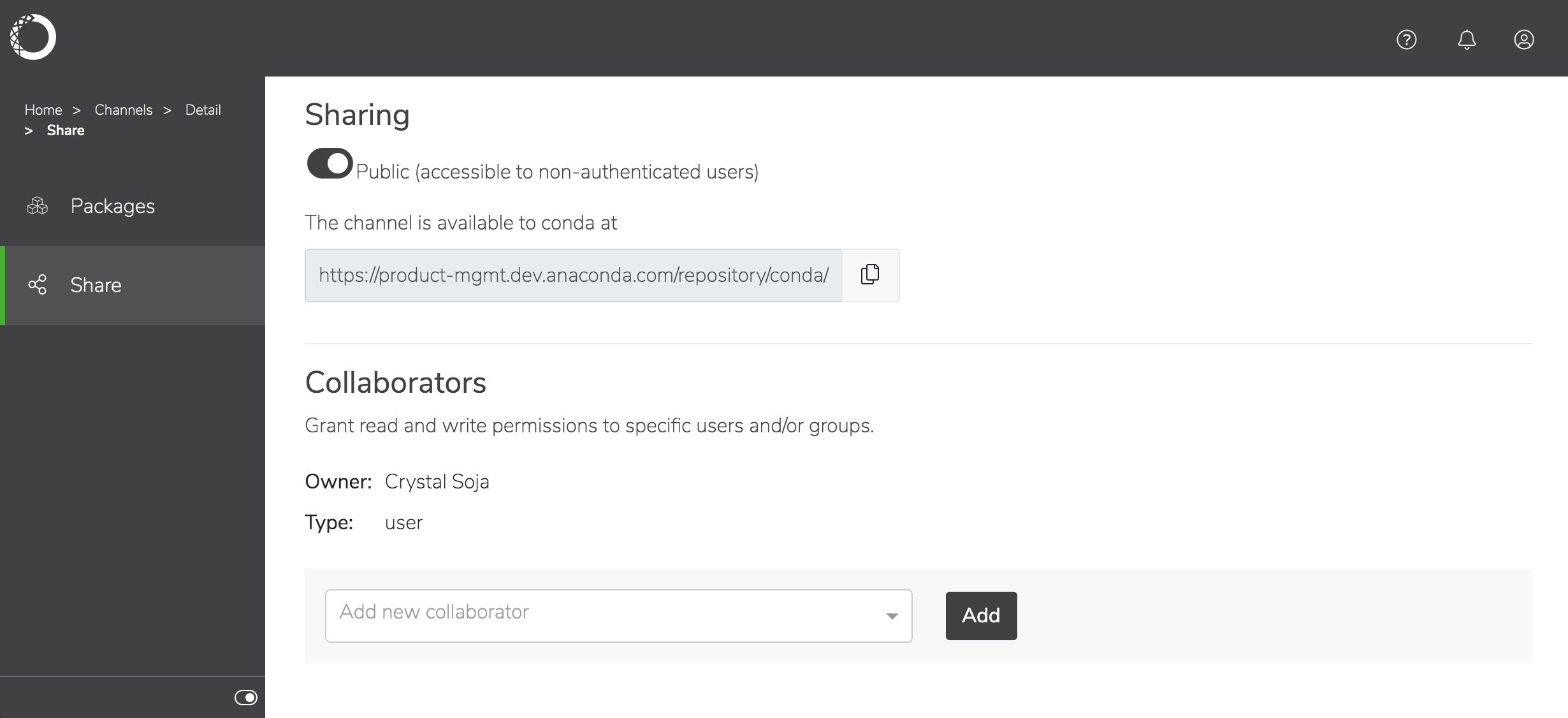 The default is to grant all collaborators read-write access, so if you want to prevent them from adding and removing packages from the channel, be sure they have read-only access. You’ll need to [use the CLI](#using-the-cli) to grant read-only access to specific users or groups (see below).
**To create a new channel and add packages to the channel for others to access:**
1. Click **Create** in the top right corner, enter a meaningful name for the channel and click **Create**.
Channels are `Public`—accessible by non-authenticated users—by default. To make the channel `Private`, and therefore available to authenticated users only, disable the toggle to switch the channel setting from `Public` to `Private`.
2. Click **Upload** to select the packages you want to add to the channel.
***
## Using the CLI:
Get a list of all the channels on the platform with the `channels list` command:
```
anaconda-enterprise-cli channels list
```
Share a channel with a specific user using the `share` command:
```
anaconda-enterprise-cli channels share --user username --level r
```
You can also share a channel with an existing group:
```
anaconda-enterprise-cli channels share --group GROUPNAME --level r
```
Replacing GROUPNAME with the actual name of the group.
Adding `--level r` grants this group read-only access to the channel.
You can “unshare” a channel using the following command:
```
anaconda-enterprise-cli channels share --user --remove
```
Run `anaconda-enterprise-cli channels --help` to see more information about
what you can do with channels.
For help with a specific command, enter that command followed by `--help`:
```
anaconda-enterprise-cli channels share --help
```
The default is to grant all collaborators read-write access, so if you want to prevent them from adding and removing packages from the channel, be sure they have read-only access. You’ll need to [use the CLI](#using-the-cli) to grant read-only access to specific users or groups (see below).
**To create a new channel and add packages to the channel for others to access:**
1. Click **Create** in the top right corner, enter a meaningful name for the channel and click **Create**.
Channels are `Public`—accessible by non-authenticated users—by default. To make the channel `Private`, and therefore available to authenticated users only, disable the toggle to switch the channel setting from `Public` to `Private`.
2. Click **Upload** to select the packages you want to add to the channel.
***
## Using the CLI:
Get a list of all the channels on the platform with the `channels list` command:
```
anaconda-enterprise-cli channels list
```
Share a channel with a specific user using the `share` command:
```
anaconda-enterprise-cli channels share --user username --level r
```
You can also share a channel with an existing group:
```
anaconda-enterprise-cli channels share --group GROUPNAME --level r
```
Replacing GROUPNAME with the actual name of the group.
Adding `--level r` grants this group read-only access to the channel.
You can “unshare” a channel using the following command:
```
anaconda-enterprise-cli channels share --user --remove
```
Run `anaconda-enterprise-cli channels --help` to see more information about
what you can do with channels.
For help with a specific command, enter that command followed by `--help`:
```
anaconda-enterprise-cli channels share --help
```