> ## Documentation Index
> Fetch the complete documentation index at: https://anaconda.com/docs/llms.txt
> Use this file to discover all available pages before exploring further.
# Specifying alternate wildcard domains
By default, Data Science & AI Workbench expects the wildcard domain to be the same for the primary platform server and the application domain.
If your particular implementation uses different domains, you’ll need to update the configuration file for the platform with the fully qualified domain name (FQDN) for each server.
Make sure the wildcard domain has a TLS cert and DNS entry that meets [these requirements](../../environment-prep/gravity-prep#dns-requirements) before you follow the process below to specify it as an `apps-host` or `workspace-host`.
1. Log in to Workbench, select **Menu** in the top right corner and click the **Administrative Console** link displayed at the bottom of the slide out window.
2. Click **Manage Resources**.
3. Log in to the Operations Center using the Administrator credentials [configured after installation](../../install/config).
4. Select **Configuration** from the menu on the left.
5. Verify that the `anaconda-enterprise-anaconda-platform.yml` configuration file is selected in the **Config map** drop-down menu.
Any changes you make will impact how Workbench functions, so **we strongly recommend that you save a copy of the original file** before making any changes.
6. Scroll down to the `Deployment server configuration` section of the Config map:
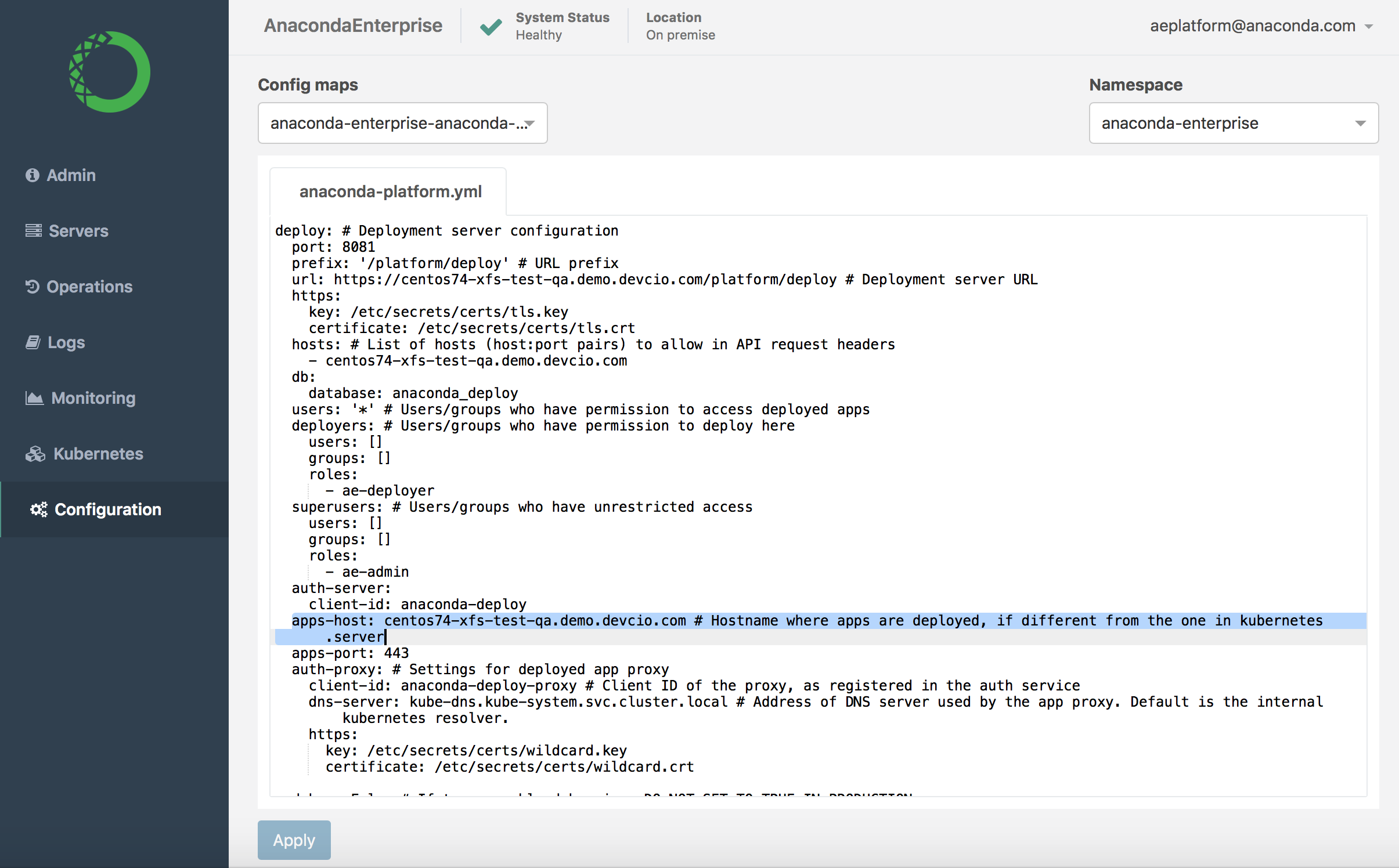 7. Search for and update the `apps-host` setting with the FQDN of the host server you’ll be deploying apps to, if it’s different than the default Kubernetes server.
8. Scroll down to the `Workspace server configuration` section of the Config map:
7. Search for and update the `apps-host` setting with the FQDN of the host server you’ll be deploying apps to, if it’s different than the default Kubernetes server.
8. Scroll down to the `Workspace server configuration` section of the Config map:
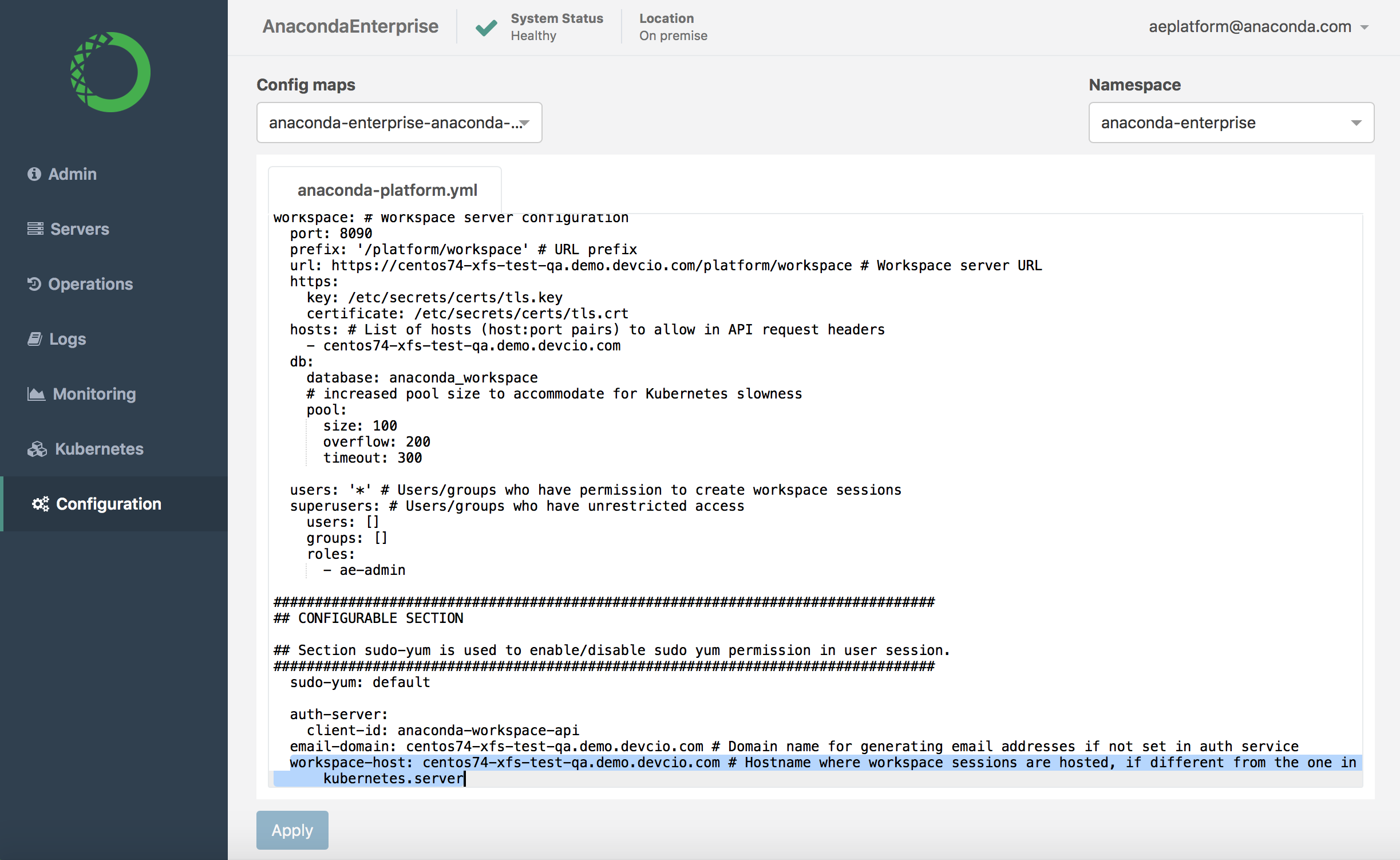 9. Update the `workspace-host` setting with the FQDN of the host server you’ll be using as a workspace server, if it’s different than the default Kubernetes server.
10. Click **Apply** to save your changes.
11. To update the Workbench server with your changes, restart services by running these commands *on the master node*:
```
sudo gravity enter
kubectl get pods | grep ap- | cut -d' ' -f1 | xargs kubectl delete pods
```
9. Update the `workspace-host` setting with the FQDN of the host server you’ll be using as a workspace server, if it’s different than the default Kubernetes server.
10. Click **Apply** to save your changes.
11. To update the Workbench server with your changes, restart services by running these commands *on the master node*:
```
sudo gravity enter
kubectl get pods | grep ap- | cut -d' ' -f1 | xargs kubectl delete pods
```