> ## Documentation Index
> Fetch the complete documentation index at: https://anaconda.com/docs/llms.txt
> Use this file to discover all available pages before exploring further.
# Connecting to an external version control repository
Anaconda Enterprise supports the use of an external version control repository for user-created projects. Anaconda recommends connecting to this external version control repository *at time of installation*, however you are also able to migrate from one version control repository to another after installation is complete.
* To provide permission granularity and maintain parity with your external version control repository, Anaconda Enterprise will grant individual platform users access to individual repositories. **To prevent default permissions being applied to all users within a group, users cannot belong to the given organization or group.**
* Platform users will be prompted for their access token *before they create their first project* in Anaconda Enterprise. Anaconda recommends you **advise users to create an ever-lasting token**, to retain permanent access to their files from within Anaconda Enterprise. The **specific auth token permissions required for each repository** are [outlined here](../../data-science-workflows/user-settings#configuring-access-to-version-control).
**Make sure you have the following prerequisites before you begin:**
* The fully qualified domain name (FQDN) of your version control server.
* The organization, team, or group name associated with your service account.
* The username of the Administrator for the organization, team, or group. **This user will require full Admin permissions.**
* The personal access token or password required to connect to your version control repository.
## Supported external git versions
Anaconda Enterprise supports integration with the following external repositories:
| External repository | Supported versions |
| :------------------ | :-------------------- |
| GitHub Server | 2.15, through 3.4.1 |
| GitHub Cloud | github.com |
| Bitbucket Server/DC | 5.9.1 through 7.21.0 |
| Bitbucket Cloud | bitbucket.org |
| GitLab Self-Managed | 10.4.2 through 14.9.2 |
| GitLab Cloud | gitlab.com |
## Github Enterprise Edition (Server)
1. Create a backup of the `anaconda-enterprise-anaconda-platform.yml` ConfigMap.
2. Open the `anaconda-enterprise-anaconda-platform.yml` ConfigMap for editing.
3. Locate the `git` section (pictured below)
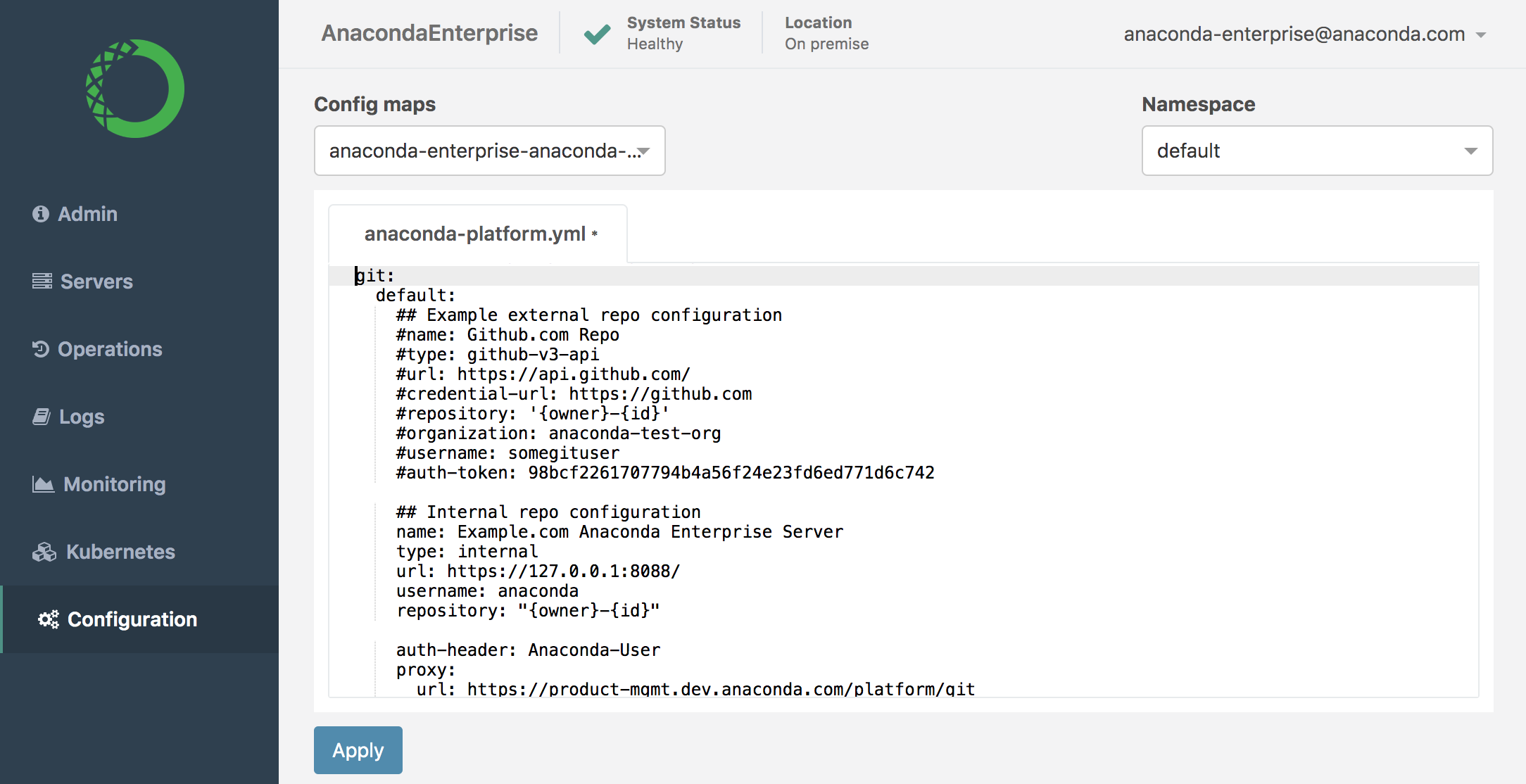 4. *Uncomment* the `Example external repo configuration` section.
5. *Comment* the `Internal repo configuration` section.
6. Configure the `Example external repo configuration`.
* `name` = A descriptive name for the service your organization uses.
* `type` = The type of version control repository your organization uses: `github-v3-api`.
* `url` = The URL of the API `https://.com/api/v3/`.
* `credential-url` = The URL to authenticate against for repository operations such as cloning and pushing `https://.com/api/v3/`.
* `repository` = Must be `'{owner}-{id}'` encased in single quotes.
* `organization` = The name of your GitHub organization.
* `username` = The username associated with the Administrator account. **This account must have full Admin permissions**.
* `auth-token` = The personal access token **for the Administrator account** associated with the `username`.
The `url` and `credential-url` attributes *must* contain all lowercase characters.
EXAMPLE:
```
git:
default:
## Example external repo configuration
name: github-server
type: github-v3-api
url: https:///api/v3/
http-timeout: 60
credential-url: https:///api/v3/
repository: '{owner}-{id}'
organization:
username:
auth-token:
## Internal repo configuration
#name: Example.com Anaconda Enterprise Server
#type: internal
#url: http://127.0.0.1:8088/
#http-timeout: 60
#username: anaconda
```
7. Save your changes.
8. Restart system pods with the following command for changes to take effect:
```
kubectl delete --wait=false $(kubectl get pods -o name|grep ap-)
```
Once all pods have returned to a running state, users should now be prompted to add their personal access token after logging into the platform.
## Github Enterprise Edition (Cloud)
1. Create a backup of the `anaconda-enterprise-anaconda-platform.yml` ConfigMap.
2. Open the `anaconda-enterprise-anaconda-platform.yml` ConfigMap for editing.
3. Locate the `git` section (pictured below)
4. *Uncomment* the `Example external repo configuration` section.
5. *Comment* the `Internal repo configuration` section.
6. Configure the `Example external repo configuration`.
* `name` = A descriptive name for the service your organization uses.
* `type` = The type of version control repository your organization uses: `github-v3-api`.
* `url` = The URL of the API `https://api.github.com/`.
* `credential-url` = The URL to authenticate against for repository operations such as cloning and pushing `https://github.com/`.
* `repository` = Must be `'{owner}-{id}'` encased in single quotes.
* `organization` = The name of your GitHub organization.
* `username` = The username associated with the Administrator account. **This account must have full Admin permissions**.
* `auth-token` = The personal access token **for the Administrator account** associated with the `username`.
The `url` and `credential-url` attributes *must* contain all lowercase characters.
EXAMPLE:
```
git:
default:
## Example external repo configuration
name: github-cloud
type: github-v3-api
url: https://api.github.com/
http-timeout: 60
credential-url: https://github.com/
repository: '{owner}-{id}'
organization:
username:
auth-token:
## Internal repo configuration
#name: Example.com Anaconda Enterprise Server
#type: internal
#url: http://127.0.0.1:8088/
#http-timeout: 60
#username: anaconda
```
7. Save your changes.
8. Restart system pods with the following command for changes to take effect:
```
kubectl delete --wait=false $(kubectl get pods -o name|grep ap-)
```
Once all pods have returned to a running state, users should now be prompted to add their personal access token after logging into the platform.
## Bitbucket Server/Data Center
1. Create a backup of the `anaconda-enterprise-anaconda-platform.yml` ConfigMap.
2. Open the `anaconda-enterprise-anaconda-platform.yml` ConfigMap for editing.
3. Locate the `git` section (pictured below)
4. *Uncomment* the `Example external repo configuration` section.
5. *Comment* the `Internal repo configuration` section.
6. Configure the `Example external repo configuration`.
* `name` = A descriptive name for the service your organization uses.
* `type` = The type of version control repository your organization uses: `bitbucket-v1-api`.
* `url` = The URL of the API `https://:7990`.
* `credential-url` = The URL to authenticate against for repository operations such as cloning and pushing `https://:7990`.
* `repository` = Must be `'{owner}-{id}'` encased in single quotes.
* `organization` = The name of your Bitbucket team.
* `username` = The username associated with the Administrator account. **This account must have full Admin permissions**.
* `auth-token` = The Bitbucket app password **for the Administrator account** associated with the `username`.
The `url` and `credential-url` attributes *must* contain all lowercase characters.
EXAMPLE:
```
git:
default:
## Example external repo configuration
name: bitbucket-server
type: bitbucket-v1-api
url: https://:7990
http-timeout: 60
credential-url: https://:7990
repository: '{owner}-{id}'
organization:
username:
auth-token:
## Internal repo configuration
#name: Example.com Anaconda Enterprise Server
#type: internal
#url: http://127.0.0.1:8088/
#http-timeout: 60
#username: anaconda
```
7. Save your changes.
8. Restart system pods with the following command for changes to take effect:
```
kubectl delete --wait=false $(kubectl get pods -o name|grep ap-)
```
Once all pods have returned to a running state, users should now be prompted to add their app password after logging into the platform.
## Bitbucket Cloud
Bitbucket.com does not support versioning of archive downloads and app deployments. In other words, **the latest revision will always be downloaded or deployed**.
1. Create a backup of the `anaconda-enterprise-anaconda-platform.yml` ConfigMap.
2. Open the `anaconda-enterprise-anaconda-platform.yml` ConfigMap for editing.
3. Locate the `git` section (pictured below)
4. *Uncomment* the `Example external repo configuration` section.
5. *Comment* the `Internal repo configuration` section.
6. Configure the `Example external repo configuration`.
* `name` = A descriptive name for the service your organization uses.
* `type` = The type of version control repository your organization uses: `bitbucket-v2-api`.
* `url` = The URL of the API `https://api.bitbucket.org`.
* `credential-url` = The URL to authenticate against for repository operations such as cloning and pushing `https://bitbucket.org`.
* `repository` = Must be `'{owner}-{id}'` encased in single quotes.
* `organization` = The name of your Bitbucket team.
* `username` = The username associated with the Administrator account **This account must have full Admin permissions**.
* `auth-token` = The Bitbucket app password **for the Administrator account** associated with the `username`.
The `url` and `credential-url` attributes *must* contain all lowercase characters.
EXAMPLE:
```
git:
default:
## Example external repo configuration
name: bitbucket-cloud
type: bitbucket-v2-api
url: https://api.bitbucket.org
http-timeout: 60
credential-url: https://bitbucket.org/
repository: '{owner}-{id}'
organization:
username:
auth-token:
## Internal repo configuration
#name: Example.com Anaconda Enterprise Server
#type: internal
#url: http://127.0.0.1:8088/
#http-timeout: 60
#username: anaconda
```
7. Save your changes.
8. Restart system pods with the following command for changes to take effect:
```
kubectl delete --wait=false $(kubectl get pods -o name|grep ap-)
```
Once all pods have returned to a running state, users should now be prompted to add their app password after logging into the platform.
## GitLab Enterprise Edition (Self-Managed)
1. Create a backup of the `anaconda-enterprise-anaconda-platform.yml` ConfigMap.
2. Open the `anaconda-enterprise-anaconda-platform.yml` ConfigMap for editing.
3. Locate the `git` section (pictured below)
4. *Uncomment* the `Example external repo configuration` section.
5. *Comment* the `Internal repo configuration` section.
6. Configure the `Example external repo configuration`.
* `name` = A descriptive name for the service your organization uses.
* `type` = The type of version control repository your organization uses: `gitlab-v4-api`.
* `url` = The URL of the API `https://.com`.
* `credential-url` = The URL to authenticate against for repository operations such as cloning and pushing `https://.com`.
* `repository` = Must be `'{owner}-{id}'` encased in single quotes.
* `organization` = The name of your GitLab group.
* `username` = The username associated with the Administrator account **This account must have full Admin permissions**.
* `auth-token` = The access token **for the Administrator account** associated with the `username`.
The `url` and `credential-url` attributes *must* contain all lowercase characters.
EXAMPLE:
```
git:
efault:
## Example external repo configuration
name: gitlab-server
type: gitlab-v4-api
url: https://.com
http-timeout: 60
credential-url: https://.com
repository: '{owner}-{id}'
organization:
username:
auth-token:
## Internal repo configuration
#name: Example.com Anaconda Enterprise Server
#type: internal
#url: http://127.0.0.1:8088/
#http-timeout: 60
#username: anaconda
```
7. Save your changes.
8. Restart system pods with the following command for changes to take effect:
```
kubectl delete --wait=false $(kubectl get pods -o name|grep ap-)
```
Once all pods have returned to a running state, users should now be prompted to add their access token after logging into the platform.
## GitLab Enterprise Edition (Cloud)
GitLab.com does not support versioning of archive downloads and app deployments. In other words, **the latest revision will always be downloaded or deployed**.
1. Create a backup of the `anaconda-enterprise-anaconda-platform.yml` ConfigMap.
2. Open the `anaconda-enterprise-anaconda-platform.yml` ConfigMap for editing.
3. Locate the `git` section (pictured below)
4. *Uncomment* the `Example external repo configuration` section.
5. *Comment* the `Internal repo configuration` section.
6. Configure the `Example external repo configuration`.
* `name` = A descriptive name for the service your organization uses.
* `type` = The type of version control repository your organization uses: `gitlab-v4-api`.
* `url` = The URL of the API `https://gitlab.com`.
* `credential-url` = The URL to authenticate against for repository operations such as cloning and pushing `https://gitlab.com`.
* `repository` = Must be `'{owner}-{id}'` encased in single quotes.
* `organization` = The name of your GitLab group.
* `username` = The username associated with the Administrator account **This account must have full Admin permissions**.
* `auth-token` = The access token **for the Administrator account** associated with the `username`.
The `url` and `credential-url` attributes *must* contain all lowercase characters.
EXAMPLE:
```
git:
default:
## Example external repo configuration
name: gitlab-cloud
type: gitlab-v4-api
url: https://gitlab.com
http-timeout: 60
credential-url: https://gitlab.com
repository: '{owner}-{id}'
organization:
username:
auth-token:
## Internal repo configuration
#name: Example.com Anaconda Enterprise Server
#type: internal
#url: http://127.0.0.1:8088/
#http-timeout: 60
#username: anaconda
```
7. Save your changes.
8. Restart system pods with the following command for changes to take effect:
```
kubectl delete --wait=false $(kubectl get pods -o name|grep ap-)
```
Once all pods have returned to a running state, users should now be prompted to add their access token after logging into the platform.
4. *Uncomment* the `Example external repo configuration` section.
5. *Comment* the `Internal repo configuration` section.
6. Configure the `Example external repo configuration`.
* `name` = A descriptive name for the service your organization uses.
* `type` = The type of version control repository your organization uses: `github-v3-api`.
* `url` = The URL of the API `https://.com/api/v3/`.
* `credential-url` = The URL to authenticate against for repository operations such as cloning and pushing `https://.com/api/v3/`.
* `repository` = Must be `'{owner}-{id}'` encased in single quotes.
* `organization` = The name of your GitHub organization.
* `username` = The username associated with the Administrator account. **This account must have full Admin permissions**.
* `auth-token` = The personal access token **for the Administrator account** associated with the `username`.
The `url` and `credential-url` attributes *must* contain all lowercase characters.
EXAMPLE:
```
git:
default:
## Example external repo configuration
name: github-server
type: github-v3-api
url: https:///api/v3/
http-timeout: 60
credential-url: https:///api/v3/
repository: '{owner}-{id}'
organization:
username:
auth-token:
## Internal repo configuration
#name: Example.com Anaconda Enterprise Server
#type: internal
#url: http://127.0.0.1:8088/
#http-timeout: 60
#username: anaconda
```
7. Save your changes.
8. Restart system pods with the following command for changes to take effect:
```
kubectl delete --wait=false $(kubectl get pods -o name|grep ap-)
```
Once all pods have returned to a running state, users should now be prompted to add their personal access token after logging into the platform.
## Github Enterprise Edition (Cloud)
1. Create a backup of the `anaconda-enterprise-anaconda-platform.yml` ConfigMap.
2. Open the `anaconda-enterprise-anaconda-platform.yml` ConfigMap for editing.
3. Locate the `git` section (pictured below)
4. *Uncomment* the `Example external repo configuration` section.
5. *Comment* the `Internal repo configuration` section.
6. Configure the `Example external repo configuration`.
* `name` = A descriptive name for the service your organization uses.
* `type` = The type of version control repository your organization uses: `github-v3-api`.
* `url` = The URL of the API `https://api.github.com/`.
* `credential-url` = The URL to authenticate against for repository operations such as cloning and pushing `https://github.com/`.
* `repository` = Must be `'{owner}-{id}'` encased in single quotes.
* `organization` = The name of your GitHub organization.
* `username` = The username associated with the Administrator account. **This account must have full Admin permissions**.
* `auth-token` = The personal access token **for the Administrator account** associated with the `username`.
The `url` and `credential-url` attributes *must* contain all lowercase characters.
EXAMPLE:
```
git:
default:
## Example external repo configuration
name: github-cloud
type: github-v3-api
url: https://api.github.com/
http-timeout: 60
credential-url: https://github.com/
repository: '{owner}-{id}'
organization:
username:
auth-token:
## Internal repo configuration
#name: Example.com Anaconda Enterprise Server
#type: internal
#url: http://127.0.0.1:8088/
#http-timeout: 60
#username: anaconda
```
7. Save your changes.
8. Restart system pods with the following command for changes to take effect:
```
kubectl delete --wait=false $(kubectl get pods -o name|grep ap-)
```
Once all pods have returned to a running state, users should now be prompted to add their personal access token after logging into the platform.
## Bitbucket Server/Data Center
1. Create a backup of the `anaconda-enterprise-anaconda-platform.yml` ConfigMap.
2. Open the `anaconda-enterprise-anaconda-platform.yml` ConfigMap for editing.
3. Locate the `git` section (pictured below)
4. *Uncomment* the `Example external repo configuration` section.
5. *Comment* the `Internal repo configuration` section.
6. Configure the `Example external repo configuration`.
* `name` = A descriptive name for the service your organization uses.
* `type` = The type of version control repository your organization uses: `bitbucket-v1-api`.
* `url` = The URL of the API `https://:7990`.
* `credential-url` = The URL to authenticate against for repository operations such as cloning and pushing `https://:7990`.
* `repository` = Must be `'{owner}-{id}'` encased in single quotes.
* `organization` = The name of your Bitbucket team.
* `username` = The username associated with the Administrator account. **This account must have full Admin permissions**.
* `auth-token` = The Bitbucket app password **for the Administrator account** associated with the `username`.
The `url` and `credential-url` attributes *must* contain all lowercase characters.
EXAMPLE:
```
git:
default:
## Example external repo configuration
name: bitbucket-server
type: bitbucket-v1-api
url: https://:7990
http-timeout: 60
credential-url: https://:7990
repository: '{owner}-{id}'
organization:
username:
auth-token:
## Internal repo configuration
#name: Example.com Anaconda Enterprise Server
#type: internal
#url: http://127.0.0.1:8088/
#http-timeout: 60
#username: anaconda
```
7. Save your changes.
8. Restart system pods with the following command for changes to take effect:
```
kubectl delete --wait=false $(kubectl get pods -o name|grep ap-)
```
Once all pods have returned to a running state, users should now be prompted to add their app password after logging into the platform.
## Bitbucket Cloud
Bitbucket.com does not support versioning of archive downloads and app deployments. In other words, **the latest revision will always be downloaded or deployed**.
1. Create a backup of the `anaconda-enterprise-anaconda-platform.yml` ConfigMap.
2. Open the `anaconda-enterprise-anaconda-platform.yml` ConfigMap for editing.
3. Locate the `git` section (pictured below)
4. *Uncomment* the `Example external repo configuration` section.
5. *Comment* the `Internal repo configuration` section.
6. Configure the `Example external repo configuration`.
* `name` = A descriptive name for the service your organization uses.
* `type` = The type of version control repository your organization uses: `bitbucket-v2-api`.
* `url` = The URL of the API `https://api.bitbucket.org`.
* `credential-url` = The URL to authenticate against for repository operations such as cloning and pushing `https://bitbucket.org`.
* `repository` = Must be `'{owner}-{id}'` encased in single quotes.
* `organization` = The name of your Bitbucket team.
* `username` = The username associated with the Administrator account **This account must have full Admin permissions**.
* `auth-token` = The Bitbucket app password **for the Administrator account** associated with the `username`.
The `url` and `credential-url` attributes *must* contain all lowercase characters.
EXAMPLE:
```
git:
default:
## Example external repo configuration
name: bitbucket-cloud
type: bitbucket-v2-api
url: https://api.bitbucket.org
http-timeout: 60
credential-url: https://bitbucket.org/
repository: '{owner}-{id}'
organization:
username:
auth-token:
## Internal repo configuration
#name: Example.com Anaconda Enterprise Server
#type: internal
#url: http://127.0.0.1:8088/
#http-timeout: 60
#username: anaconda
```
7. Save your changes.
8. Restart system pods with the following command for changes to take effect:
```
kubectl delete --wait=false $(kubectl get pods -o name|grep ap-)
```
Once all pods have returned to a running state, users should now be prompted to add their app password after logging into the platform.
## GitLab Enterprise Edition (Self-Managed)
1. Create a backup of the `anaconda-enterprise-anaconda-platform.yml` ConfigMap.
2. Open the `anaconda-enterprise-anaconda-platform.yml` ConfigMap for editing.
3. Locate the `git` section (pictured below)
4. *Uncomment* the `Example external repo configuration` section.
5. *Comment* the `Internal repo configuration` section.
6. Configure the `Example external repo configuration`.
* `name` = A descriptive name for the service your organization uses.
* `type` = The type of version control repository your organization uses: `gitlab-v4-api`.
* `url` = The URL of the API `https://.com`.
* `credential-url` = The URL to authenticate against for repository operations such as cloning and pushing `https://.com`.
* `repository` = Must be `'{owner}-{id}'` encased in single quotes.
* `organization` = The name of your GitLab group.
* `username` = The username associated with the Administrator account **This account must have full Admin permissions**.
* `auth-token` = The access token **for the Administrator account** associated with the `username`.
The `url` and `credential-url` attributes *must* contain all lowercase characters.
EXAMPLE:
```
git:
efault:
## Example external repo configuration
name: gitlab-server
type: gitlab-v4-api
url: https://.com
http-timeout: 60
credential-url: https://.com
repository: '{owner}-{id}'
organization:
username:
auth-token:
## Internal repo configuration
#name: Example.com Anaconda Enterprise Server
#type: internal
#url: http://127.0.0.1:8088/
#http-timeout: 60
#username: anaconda
```
7. Save your changes.
8. Restart system pods with the following command for changes to take effect:
```
kubectl delete --wait=false $(kubectl get pods -o name|grep ap-)
```
Once all pods have returned to a running state, users should now be prompted to add their access token after logging into the platform.
## GitLab Enterprise Edition (Cloud)
GitLab.com does not support versioning of archive downloads and app deployments. In other words, **the latest revision will always be downloaded or deployed**.
1. Create a backup of the `anaconda-enterprise-anaconda-platform.yml` ConfigMap.
2. Open the `anaconda-enterprise-anaconda-platform.yml` ConfigMap for editing.
3. Locate the `git` section (pictured below)
4. *Uncomment* the `Example external repo configuration` section.
5. *Comment* the `Internal repo configuration` section.
6. Configure the `Example external repo configuration`.
* `name` = A descriptive name for the service your organization uses.
* `type` = The type of version control repository your organization uses: `gitlab-v4-api`.
* `url` = The URL of the API `https://gitlab.com`.
* `credential-url` = The URL to authenticate against for repository operations such as cloning and pushing `https://gitlab.com`.
* `repository` = Must be `'{owner}-{id}'` encased in single quotes.
* `organization` = The name of your GitLab group.
* `username` = The username associated with the Administrator account **This account must have full Admin permissions**.
* `auth-token` = The access token **for the Administrator account** associated with the `username`.
The `url` and `credential-url` attributes *must* contain all lowercase characters.
EXAMPLE:
```
git:
default:
## Example external repo configuration
name: gitlab-cloud
type: gitlab-v4-api
url: https://gitlab.com
http-timeout: 60
credential-url: https://gitlab.com
repository: '{owner}-{id}'
organization:
username:
auth-token:
## Internal repo configuration
#name: Example.com Anaconda Enterprise Server
#type: internal
#url: http://127.0.0.1:8088/
#http-timeout: 60
#username: anaconda
```
7. Save your changes.
8. Restart system pods with the following command for changes to take effect:
```
kubectl delete --wait=false $(kubectl get pods -o name|grep ap-)
```
Once all pods have returned to a running state, users should now be prompted to add their access token after logging into the platform.