> ## Documentation Index
> Fetch the complete documentation index at: https://anaconda.com/docs/llms.txt
> Use this file to discover all available pages before exploring further.
# RedHat OpenShift Service on AWS (ROSA)
This guide offers recommended configurations and settings to install
Anaconda Enterprise onto a Red Hat OpenShift Service on AWS (ROSA) cluster.
* [Instance types](#instance-types)
* [Storage](#storage)
* [DNS / SSL](#dns-ssl)
* [Helm chart customization](#helm-chart-customization)
* [No GPU support](#no-gpu-support)
## Instance types
* Minimum: `m5.2xlarge`
* Recommended: `m5.4xlarge` or larger
## Storage
ROSA supports the use of both EBS and EFS storage for persistence. In theory,
EBS can be employed for the `anaconda-storage` volume; but because EBS is
limited to the `ReadWriteOnce` access mode, only EFS is acceptable for the
`anaconda-persistence` volume. For this reason, Anaconda recommends provisioning
a single volume that is large and performant enough to accommodate *both*
storage requirements, to simplify management.
Please refer to the following pages for information on provisioning an EFS volume:
* [Amazon EFS CSI driver](https://docs.aws.amazon.com/eks/latest/userguide/efs-csi)
* [Working with Amazon EFS Access Points](https://docs.aws.amazon.com/efs/latest/ug/efs-access-points)
* [CreationInfo](https://docs.aws.amazon.com/efs/latest/ug/API_CreationInfo)
Anaconda recommends the following configuration parameters for this volume:
* `OwnerUid`: Anaconda recommends this be set to the same UID selected to run
the Anaconda Enterprise containers.
* `OwnerGid`: Anaconda recommends a value of `0`, which simplifies access from
Kubernetes containers whose primary group is `0` by default. If you choose
a different GID, it will be necessary to incorporate that into the `PersistentVolume`
specification.
* `Permissions`: `770` or `775`.
It is important that the directory be group writable.
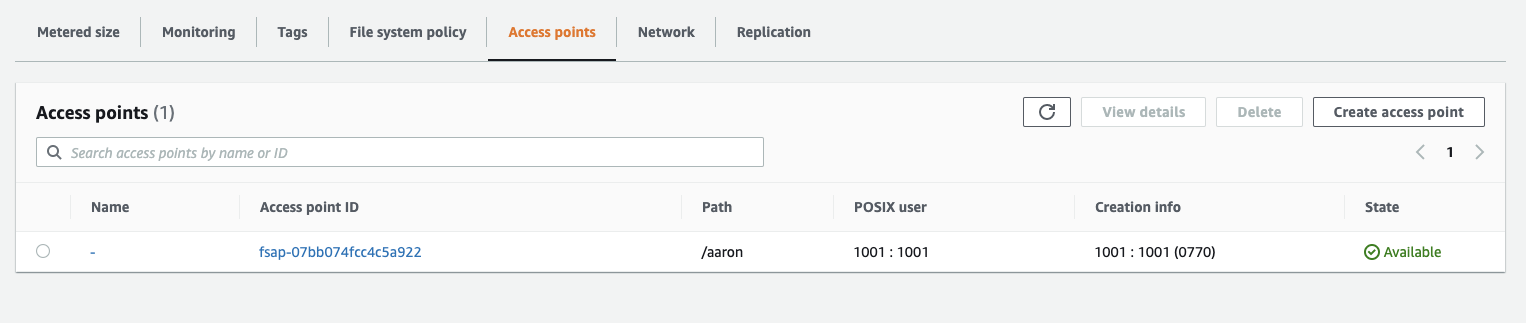
When defining the access controls for this volume, include both the ROSA cluster
and the administration server, so the latter can be used to manage the volume.
You can create an EFS access point using the UID/GID defined above.
DNS / SSL
OpenShift imposes a unique subdomain structure to the applications that
run on its clusters; for example:
```
anaconda.apps.openshift.example.com
*.anaconda.apps.openshift.example.com
```
When creating the SSL certificate, make sure that they are constructed
for this multi-level domain name.
Note that even though your ROSA cluster may already be configured to serve SSL, Anaconda Enterprise will still require its own SSL certificate due to the usage of wildcards.
## Helm chart customization
OpenShift uses a different DNS server address than the one assumed by default in
the helm chart. To ensure that the application uses the proper address, add the
following lines, respecting indentation, to your `values.yaml` overrides file:
```
git:
default:
proxy:
dns-server: dns-default.openshift-dns.svc.cluster.local
```
## No GPU support
According to the [ROSA FAQ](https://aws.amazon.com/rosa/faqs/), ROSA does not
yet support GPU instances.