> ## Documentation Index
> Fetch the complete documentation index at: https://anaconda.com/docs/llms.txt
> Use this file to discover all available pages before exploring further.
# Saving and committing changes in a project
export const Danger = ({children}) => {
return ;
};
Saving changes to files within an editor or project is different from committing those changes to the Anaconda Enterprise server. For example, when you select **File > Save** within an editor, you *save your changes to your local copy of the file* to preserve the work you’ve done.
Files names containing unicode characters—special characters, punctuation, symbols—can’t be committed to the server, so avoid them when naming files.
When you’re ready to update the server with your changes, you *commit your changes to the project*. This also allows others to access your changes, if the project is shared. See [collaborating on projects](./collaborate) for important things to consider when working with others on shared projects.
If the size of your stored git files totals more than 1GB, your system may become bogged down and inoperative. As such, Anaconda recommends keeping file sizes under 50MB. If a file of greater size is required for your work, please contact your administrator.
Binary files are difficult for version control systems to manage, so Anaconda recommends using storage solutions designed for that type of data, and connecting to those data sources from within your Anaconda Enterprise sessions.
**To commit your changes:**
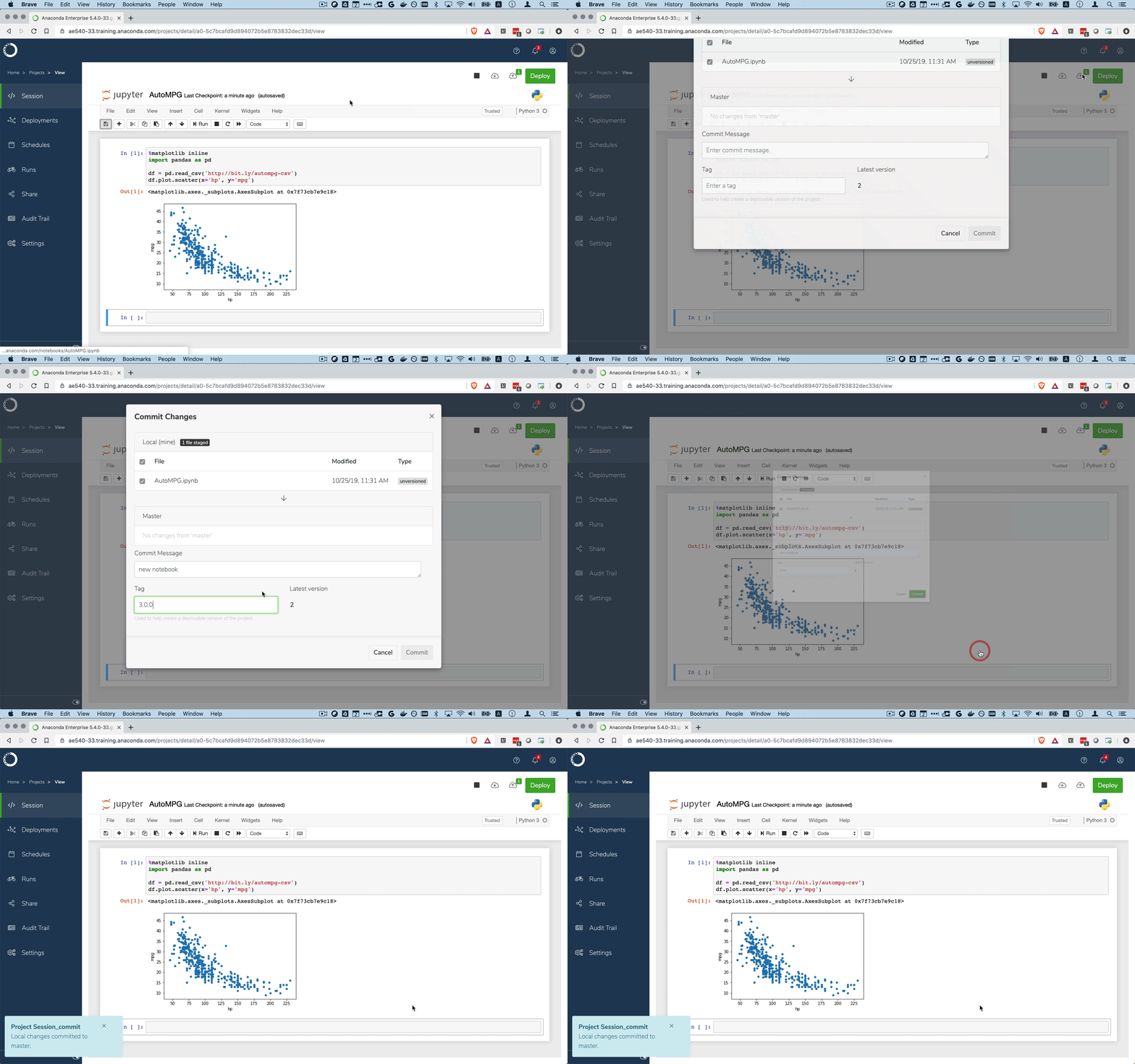
1. Click the **Commit Changes** icon .
2. Select the files you have modified and want to commit. If a file that you changed isn’t displayed in this list, make sure you saved it locally.
Editors create temporary files that may be displayed in the file list. For example, Jupyter Notebook and JupyterLab both create a hidden folder named `.ipynb_checkpoints` for each notebook project you create. This folder is hidden because the editor uses it internally, to capture the state of your `.ipynb` file between auto-save operations. Anaconda recommends you [add this and any other hidden folders to your .gitignore file](https://git-scm.com/docs/gitignore), so they are excluded from the list of project files that are checked into version control.
3. Enter a message that briefly describes the changes you made to the files or project. This information is useful for differentiating your commit from others.
4. Enter a meaningful label or version number for your project commit in the **Tag** field. You can use tags to create multiple versions of a single project so that you—or collaborators—can easily deploy a specific version of the project. See [deploying a project](../deployments/project) for more information.
5. Click **Commit**.