> ## Documentation Index
> Fetch the complete documentation index at: https://anaconda.com/docs/llms.txt
> Use this file to discover all available pages before exploring further.
# Workbench Admin Consoles
Data Science & AI Workbench provides separate consoles for System Administrators to perform tasks related to each aspect of configuring and managing the platform, *with credentials required to access each console*.
This gives enterprises the flexibility they want—and the security they need—to choose whether to grant the permissions required to access a particular console to a single Admin, or several different individuals, based on their area(s) of expertise within the organization.
## The Administrative Console
When you first log in to the **Administrative Console**, it will look something like this:
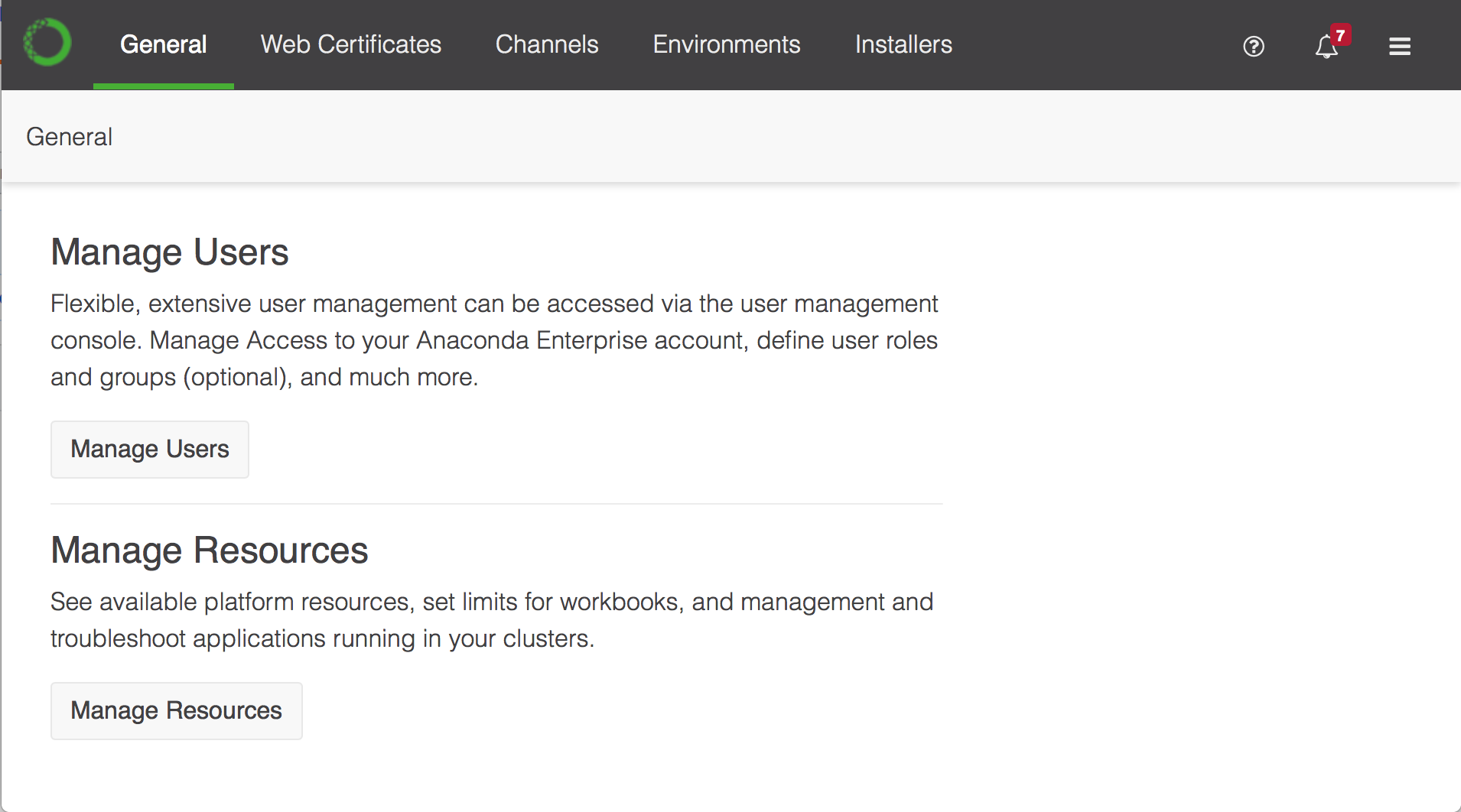 **Administrative Console Admins** can use this console to do the following:
* Configure [TLS/SSL certificates](../install/certs) used by the platform.
* [Create and share channels](./chan-pkg/main) as a way to distribute packages to platform users.
* Bundle collections of packages and their dependencies into [environments](./custom-installer#creating-an-environment).
* Create [custom installers](./custom-installer), Cloudera parcels, and Management Packs.
Click **Manage Users** to log in to [the Authentication Center](#the-authentication-center).
The credentials required to access this console are set using [the process described here](./user-mgmt/groups). (You’ll have to log in using the default `admin` credentials the first time.)
Click **Manage Resources** to log in to [the Operations Center](#the-operations-center).
The credentials required to access this console are set during the [post-install process](../install/config), and can be updated following [the process described here](./user-mgmt/admins).
## The Authentication Center
When you first log in to the **Authentication Center**, it will look something like this:
**Administrative Console Admins** can use this console to do the following:
* Configure [TLS/SSL certificates](../install/certs) used by the platform.
* [Create and share channels](./chan-pkg/main) as a way to distribute packages to platform users.
* Bundle collections of packages and their dependencies into [environments](./custom-installer#creating-an-environment).
* Create [custom installers](./custom-installer), Cloudera parcels, and Management Packs.
Click **Manage Users** to log in to [the Authentication Center](#the-authentication-center).
The credentials required to access this console are set using [the process described here](./user-mgmt/groups). (You’ll have to log in using the default `admin` credentials the first time.)
Click **Manage Resources** to log in to [the Operations Center](#the-operations-center).
The credentials required to access this console are set during the [post-install process](../install/config), and can be updated following [the process described here](./user-mgmt/admins).
## The Authentication Center
When you first log in to the **Authentication Center**, it will look something like this:
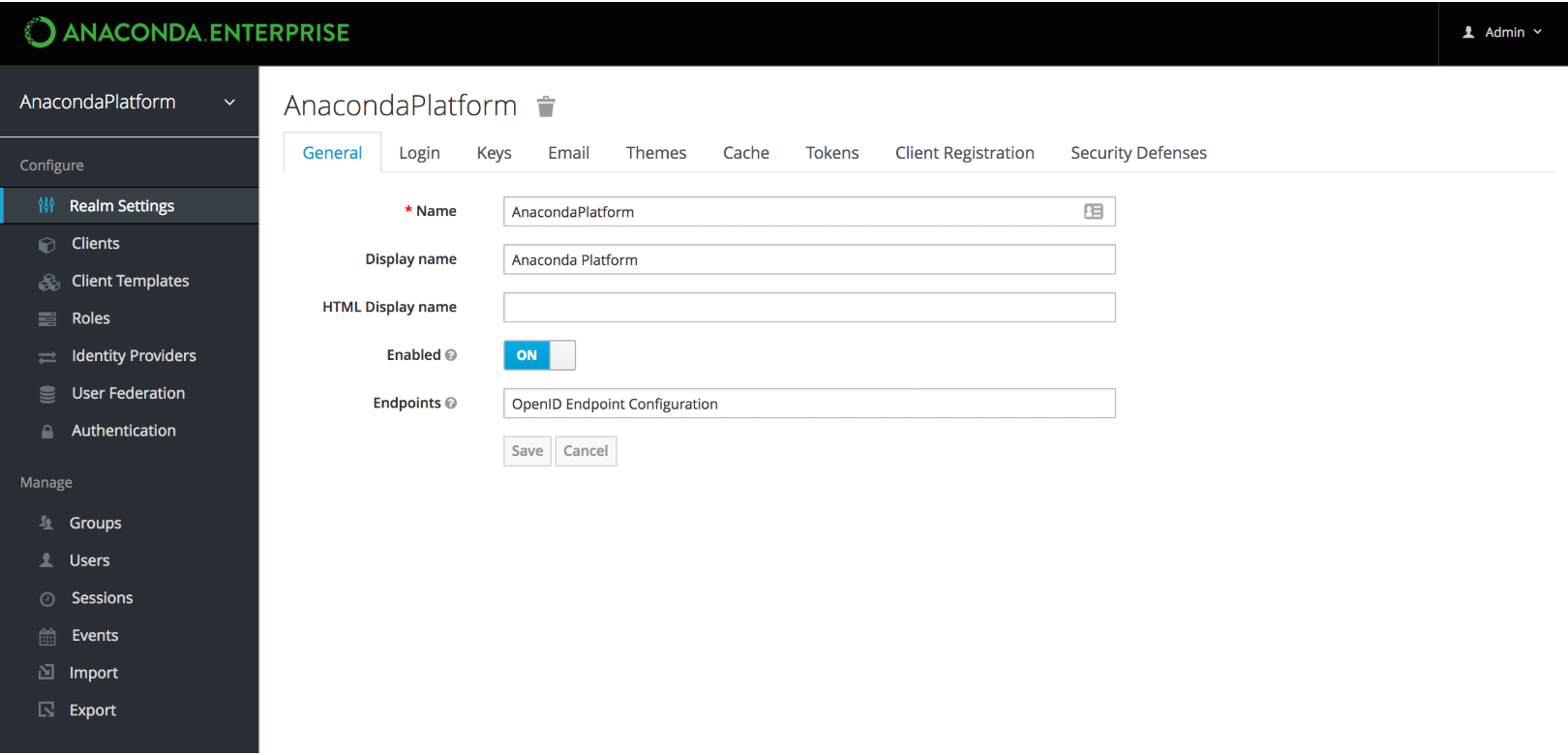 **Authentication Center Admins** can use this console to do the following:
* Connect to—and federate users from—[an existing identity provider](./user-mgmt/external-id-prov).
* Configure [user access](./user-mgmt/users) to the platform and its resources.
* Create groups of users—and [map roles to these groups](./user-mgmt/groups)—that reflect the needs of your team(s).
* Configure [session timeouts](./user-mgmt/session-timeout) for platform users.
## The Operations Center
When you first log in to the **Operations Center**, it will look something like this:
**Authentication Center Admins** can use this console to do the following:
* Connect to—and federate users from—[an existing identity provider](./user-mgmt/external-id-prov).
* Configure [user access](./user-mgmt/users) to the platform and its resources.
* Create groups of users—and [map roles to these groups](./user-mgmt/groups)—that reflect the needs of your team(s).
* Configure [session timeouts](./user-mgmt/session-timeout) for platform users.
## The Operations Center
When you first log in to the **Operations Center**, it will look something like this:
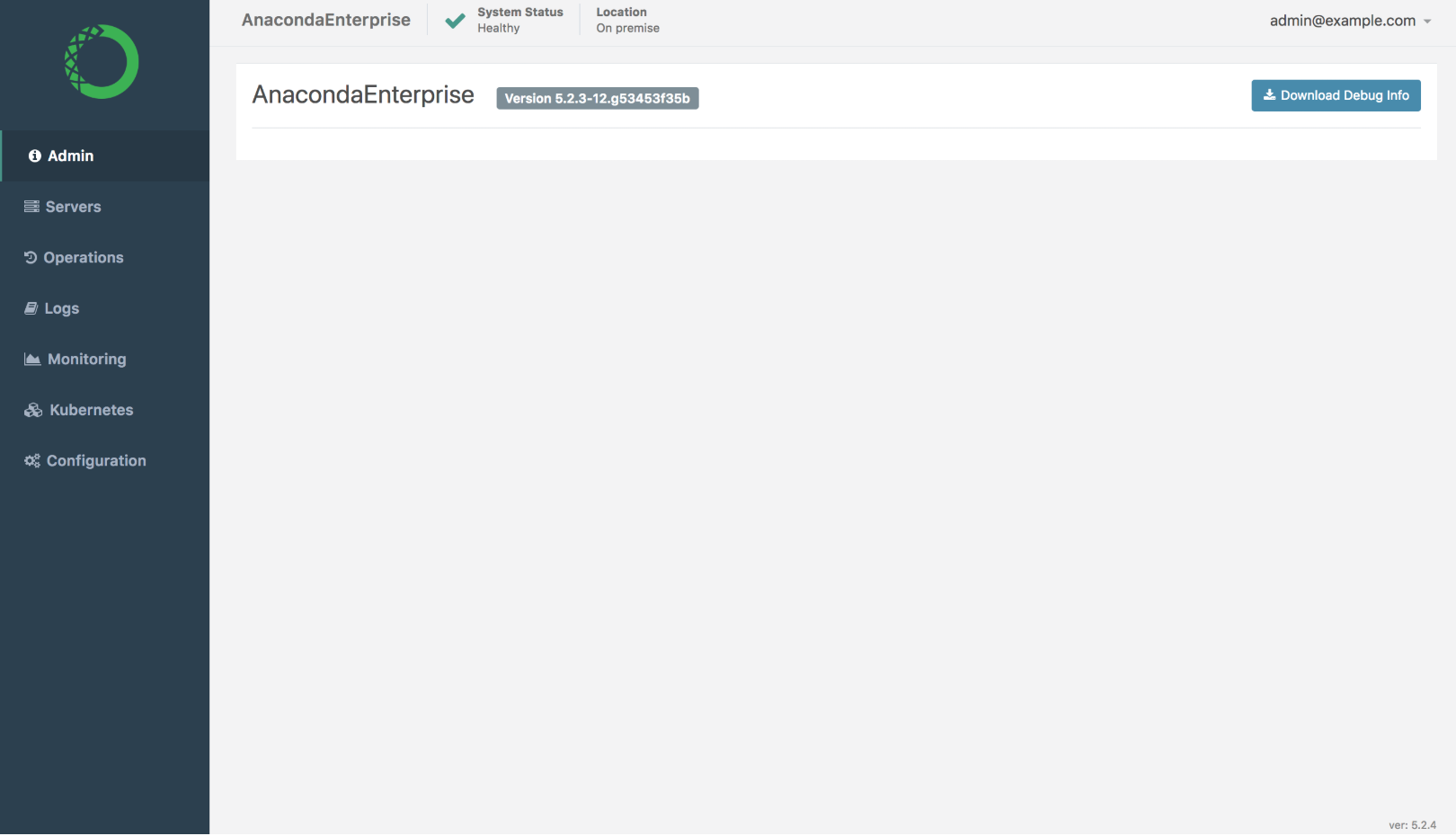 **Operations Center Admins** can use this console to do the following:
* [Add and remove server nodes](./resources/add-remove-node) from your Workbench cluster.
* Configure and monitor the utilization of your Workbench [cluster resources](./resources/main).
* Configure [advanced platform settings](./advanced/main), such as whether to use an [external version control repository](./advanced/config-repo), or an [NFS share](./advanced/nfs).
* Create and manage access credentials for [Operations Center Admins](./user-mgmt/admins).
**Operations Center Admins** can use this console to do the following:
* [Add and remove server nodes](./resources/add-remove-node) from your Workbench cluster.
* Configure and monitor the utilization of your Workbench [cluster resources](./resources/main).
* Configure [advanced platform settings](./advanced/main), such as whether to use an [external version control repository](./advanced/config-repo), or an [NFS share](./advanced/nfs).
* Create and manage access credentials for [Operations Center Admins](./user-mgmt/admins).