> ## Documentation Index
> Fetch the complete documentation index at: https://anaconda.com/docs/llms.txt
> Use this file to discover all available pages before exploring further.
# Working with projects
Anaconda Enterprise makes it easy for you to create and share interactive data visualizations, live notebooks or machine learning models built using popular libraries such Python, Bokeh, and Shiny.
AE uses *projects* to encapsulate all of the components necessary to use or run an application: the relevant packages, channels, scripts, notebooks and other related files, environment variables, services and commands, along with a configuration file named `anaconda-project.yml`. For more information, see [Developing a project](./dependencies).
Project components are all compressed into a `.tar.bz2`, `.tar.gz` or `.zip` file to make the project portable—so it’s easier to store and share with others.
To get you started, Anaconda Enterprise provides several sample projects, including the following:
* Anaconda Distribution for Python 2.7, 3.5 and 3.6
* Minimal Python templates for versions 2.7, 3.5, 3.6, and 3.7
* Matplotlib and HvPlots written in Jupyter Notebooks
* Panel and HoloViz tutorials
* Dashboards for Gapminder data set, oil and gas exploration, NYC taxi data, and attractor equations
* TensorFlow apps for Flask, Tornado and MNIST trained data
* Tutorial on the Intake data catalog package
* Tutorials for database access and time series modeling
You can access them by clicking **Sample Projects** from the **Projects** view. To use a sample project as a starting point, you can copy it to your project list.
***
**To work with a project**, click on it or select **View details** from its menu in the list view. Then use the menu on the left as follows:
* Click **Session** to open the project in the default editor. This is Jupyter Notebook, unless you’ve specified a different editor under **Settings**.
* Click **Deployments** to view [deployments](../deployments/main) initiated from this project.
* Click **Schedules** to view and [schedule deployments](../deployments/schedule-deploy) of the project.
* Click **Runs** to view a list of all project deployments that have run based on a schedule.
* Click **Share** to [share the project](./collaborate) with selected collaborators.
* Click **Audit Trail** to view a list of all actions performed on the project.
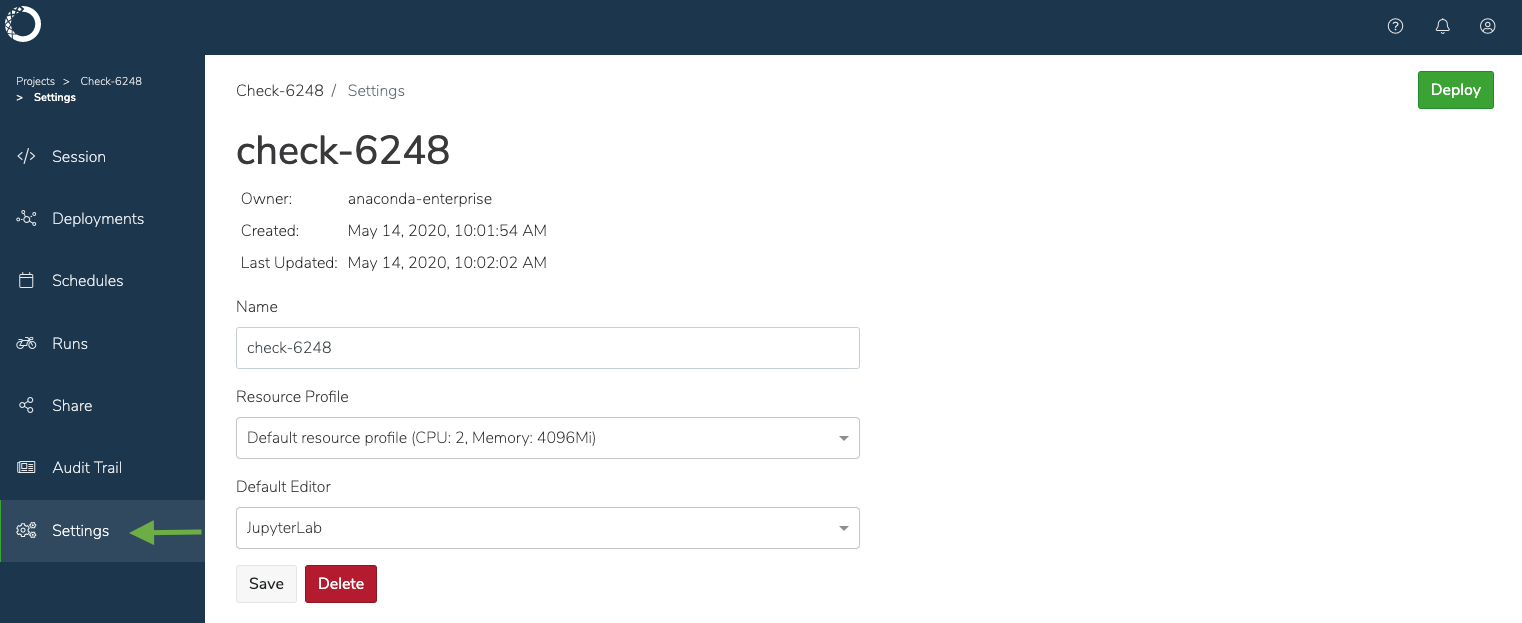
* Click **Settings** to change the project name or default editor—Jupyter Notebook—for the project. For example, if you prefer to work with Apache Zeppelin or JupyterLab, choose it as your default editor.
You can also select a resource profile that [meets or exceeds your requirements for the project](../data/load#understanding-resource-profiles), or delete the project. With admin configurations, your projects (sessions/deployments) can now run separately from the master node.
 Deleting a project is irreversible, and therefore can only be done if it is not [shared](./collaborate).
***
**To make changes to the project files**, click **Open session**.
If the system gets overloaded and there are issues copying, opening, or saving changes to a project, the platform will visually notify you by displaying it in red—in addition to generating a text notification. Anaconda recommends you check the notifications in the **Audit Trail** for additional information about the error, or delete the project and try again.
**To work with the contents offline**, you can download the compressed file and then upload it to work with it within AE.
You can also create new—or upload existing—projects to add them to the server.
**To update the project repository with your changes**, you [commit your changes to the project](./commit-changes).
To maintain performance, there is a 1GB file size limit for project files you upload. Anaconda Enterprise projects are versioned using Git, so Anaconda recommends you commit only text-based files relevant to a project, and keep them under 100MB. Binary files are difficult for version control systems to manage, so Anaconda recommends using storage solutions designed for that type of data, and [connecting to those data sources](../data/load) from within your Anaconda Enterprise sessions.
**If your organization would prefer to use its own supported external version control repository**, your Administrator can configure Anaconda Enterprise to use that repository instead of the internal GitHub server. After they do so, **you will be prompted for your personal access token before you create your first project** in Anaconda Enterprise. *Anaconda recommends you create an ever-lasting token, so you can retain permanent access to your files from within Anaconda Enterprise.* See [Configuring your user settings](../user-settings) for the permissions that must be set for your auth token, and the steps to configure connectivity to your version control repository.
Deleting a project is irreversible, and therefore can only be done if it is not [shared](./collaborate).
***
**To make changes to the project files**, click **Open session**.
If the system gets overloaded and there are issues copying, opening, or saving changes to a project, the platform will visually notify you by displaying it in red—in addition to generating a text notification. Anaconda recommends you check the notifications in the **Audit Trail** for additional information about the error, or delete the project and try again.
**To work with the contents offline**, you can download the compressed file and then upload it to work with it within AE.
You can also create new—or upload existing—projects to add them to the server.
**To update the project repository with your changes**, you [commit your changes to the project](./commit-changes).
To maintain performance, there is a 1GB file size limit for project files you upload. Anaconda Enterprise projects are versioned using Git, so Anaconda recommends you commit only text-based files relevant to a project, and keep them under 100MB. Binary files are difficult for version control systems to manage, so Anaconda recommends using storage solutions designed for that type of data, and [connecting to those data sources](../data/load) from within your Anaconda Enterprise sessions.
**If your organization would prefer to use its own supported external version control repository**, your Administrator can configure Anaconda Enterprise to use that repository instead of the internal GitHub server. After they do so, **you will be prompted for your personal access token before you create your first project** in Anaconda Enterprise. *Anaconda recommends you create an ever-lasting token, so you can retain permanent access to your files from within Anaconda Enterprise.* See [Configuring your user settings](../user-settings) for the permissions that must be set for your auth token, and the steps to configure connectivity to your version control repository.