> ## Documentation Index
> Fetch the complete documentation index at: https://anaconda.com/docs/llms.txt
> Use this file to discover all available pages before exploring further.
# Editing a project
After you have created your project so that it appears in your **Projects** list, you can open a project session to make changes to the project.
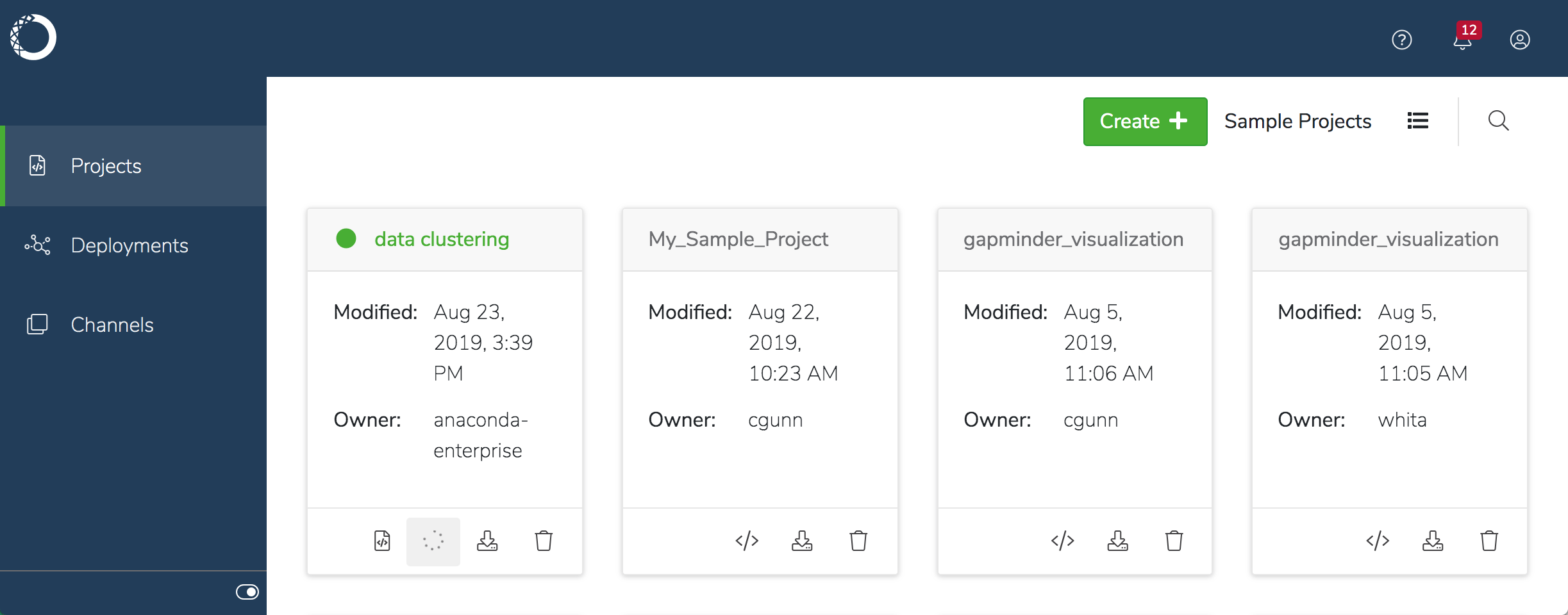 **To edit a project:**
1. Click the **Open session** icon to open the project in the editor specified the project.
2. Make your changes to the project, and save them locally. A badge is displayed on the **Commit Changes** icon to indicate that you’ve made changes that haven’t been committed to the server.
**To edit a project:**
1. Click the **Open session** icon to open the project in the editor specified the project.
2. Make your changes to the project, and save them locally. A badge is displayed on the **Commit Changes** icon to indicate that you’ve made changes that haven’t been committed to the server.
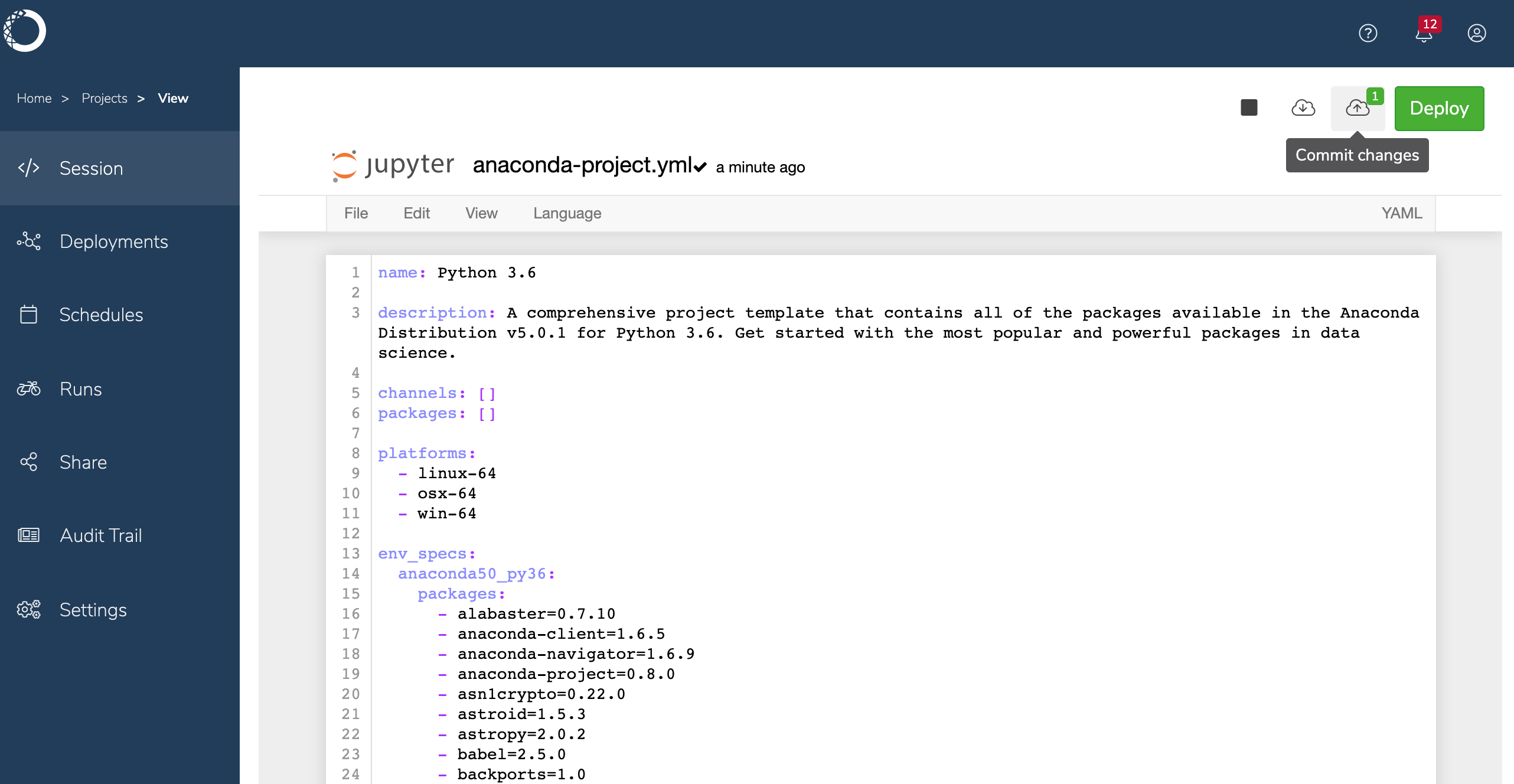 3. When you’re ready to update the repository with your changes, click the icon to [commit your changes](./commit-changes). If the project is shared, others will then be able to to access your changes, See [collaborating on projects](./collaborate) for important things to consider when working with others on shared projects.
4. When you’re done working with the project, click the **Stop session** icon. The session is listed in the **Audit Trail** for the project.
You can also leave a project session open, and click the **Return to session** when you’re ready to resume work.
See [Developing your project](./dependencies) to learn how to manage the dependencies for your project, so you can run it and deploy it.
3. When you’re ready to update the repository with your changes, click the icon to [commit your changes](./commit-changes). If the project is shared, others will then be able to to access your changes, See [collaborating on projects](./collaborate) for important things to consider when working with others on shared projects.
4. When you’re done working with the project, click the **Stop session** icon. The session is listed in the **Audit Trail** for the project.
You can also leave a project session open, and click the **Return to session** when you’re ready to resume work.
See [Developing your project](./dependencies) to learn how to manage the dependencies for your project, so you can run it and deploy it.