> ## Documentation Index
> Fetch the complete documentation index at: https://anaconda.com/docs/llms.txt
> Use this file to discover all available pages before exploring further.
# Viewing system logs
To help you gain insights into user services and troubleshoot issues, Anaconda Enterprise provides detailed
logs and debugging information related to the Kubernetes services and containers it uses.
**To access these logs from the Operations Center:**
1. Log in to Anaconda Enterprise, select the **Menu** icon in the top right corner and click the **Administrative Console** link displayed at the bottom of the slide out window.
2. Click **Manage Resources**.
3. Log in to the Operations Center using the Administrator credentials [configured after installation](../../install/config).
4. Click **Logs** in the left menu to display the complete system log.
5. Use the **Filter** drop-down to view logs based on a container.
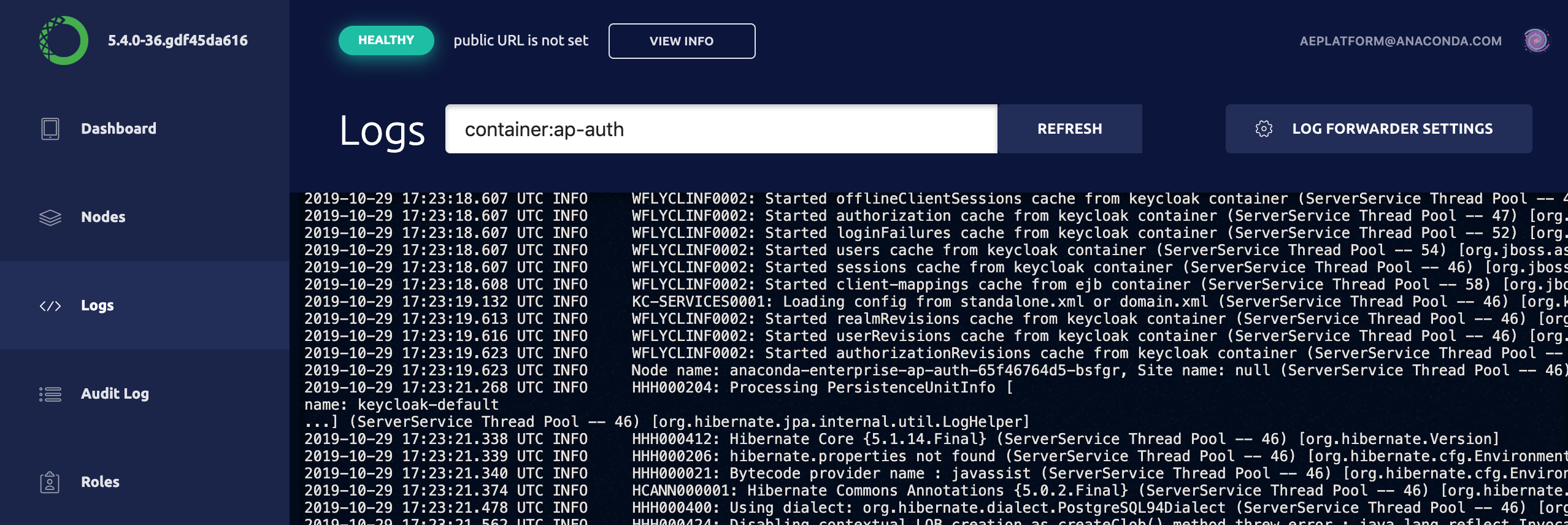 You can also access the logs for a specific pod by clicking **Kubernetes** in the left menu, clicking the **Pods** tab, clicking the name of a pod, and selecting **Logs**.
## Individual pods
To display the logs for a user session or deployment you’ll
need to identify the appropriate Kubernetes pod name.
For an editor session the Kubernetes pod name corresponds to the hostname
of the session container. Run `hostname` in a terminal window. For
deployments the pod name is available from the logs tab of the deployment
under the heading **name**.
1. Click the **Kubernetes** tab from the menu on the left
2. Click the **Pods** tab to display a list of all pods and containers.
Editor sessions are named `anaconda-session-XXXXX` and deployments are
named `anaconda-app-XXXX`.
You can also access the logs for a specific pod by clicking **Kubernetes** in the left menu, clicking the **Pods** tab, clicking the name of a pod, and selecting **Logs**.
## Individual pods
To display the logs for a user session or deployment you’ll
need to identify the appropriate Kubernetes pod name.
For an editor session the Kubernetes pod name corresponds to the hostname
of the session container. Run `hostname` in a terminal window. For
deployments the pod name is available from the logs tab of the deployment
under the heading **name**.
1. Click the **Kubernetes** tab from the menu on the left
2. Click the **Pods** tab to display a list of all pods and containers.
Editor sessions are named `anaconda-session-XXXXX` and deployments are
named `anaconda-app-XXXX`.
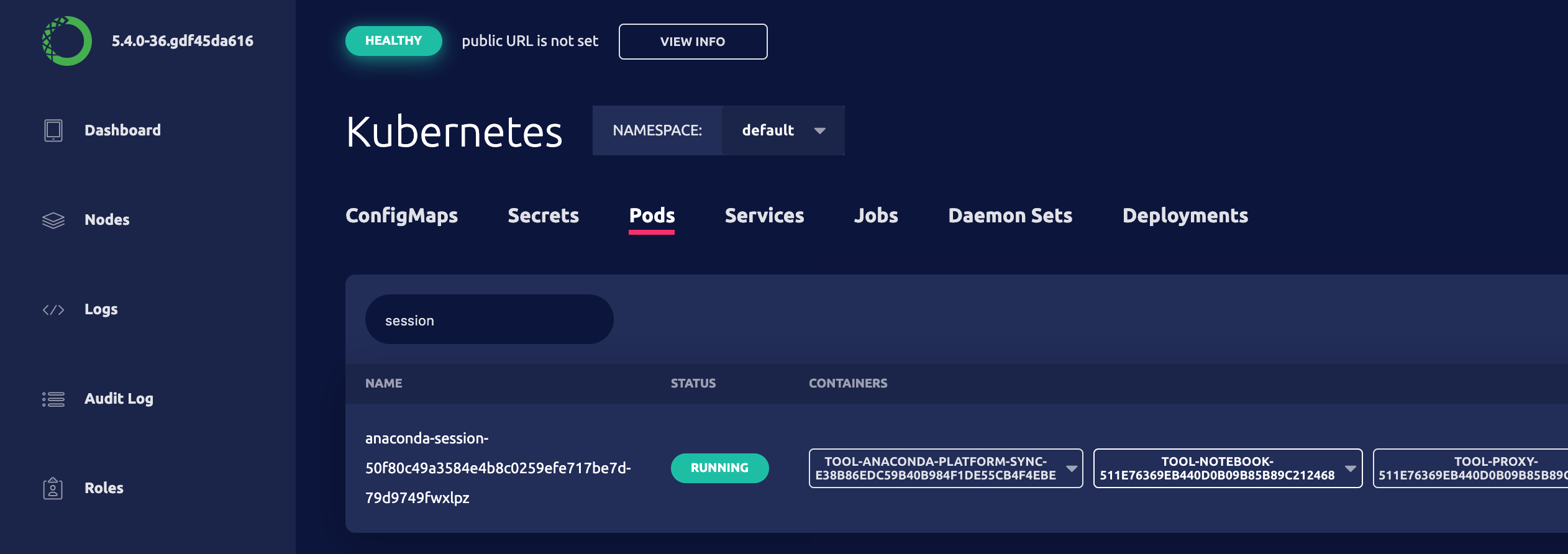 1. For the chosen pod click the pull-down button on an individual container
to view the **Logs** or to gain SSH access.
1. For the chosen pod click the pull-down button on an individual container
to view the **Logs** or to gain SSH access.
 **To use the CLI:**
1. Open an SSH session on the master node in a terminal by logging into the
Operations Center and selecting **Servers** from the menu on the left.
2. Click on the IP address for the Anaconda Enterprise master node and select
SSH login as **root**.
3. In the terminal window, run `sudo gravity enter`.
4. Run `kubectl get pods` to view a list of all running session pods.
5. Run `kubectl logs ` to display the logs for the pod specified.
**To use the CLI:**
1. Open an SSH session on the master node in a terminal by logging into the
Operations Center and selecting **Servers** from the menu on the left.
2. Click on the IP address for the Anaconda Enterprise master node and select
SSH login as **root**.
3. In the terminal window, run `sudo gravity enter`.
4. Run `kubectl get pods` to view a list of all running session pods.
5. Run `kubectl logs ` to display the logs for the pod specified.