> ## Documentation Index
> Fetch the complete documentation index at: https://anaconda.com/docs/llms.txt
> Use this file to discover all available pages before exploring further.
# Organizations
Your organization is your team's private, secure workspace where you can access professionally vetted open-source packages with built-in vulnerability tracking.
## Joining an organization
How you join an organization depends on how your organization manages access:
* **Enterprise SSO with SCIM**: Your IT administrator provisions your account through your company's identity provider, which automatically creates your account and adds you to your organization. No invitation is required.
* **Invitation**: You receive an email invitation from an administrator. Once you've accepted the invitation, your administrator can assign you a seat (license), and then you'll be able to issue and set an organization access token and use the organization's channels. Work with your administrator to get a seat assigned to you.
## Signing in
If your administrator has set up enterprise SSO, you'll be able to sign in to Anaconda.com using your enterprise credentials; otherwise, you'll be able to sign in using your Anaconda.com account credentials.
If you belong to multiple organizations or workspaces, an organization selector appears after you sign in. The organization you select determines your active permissions and available resources. You can switch between organizations at any time.
## Leaving an organization
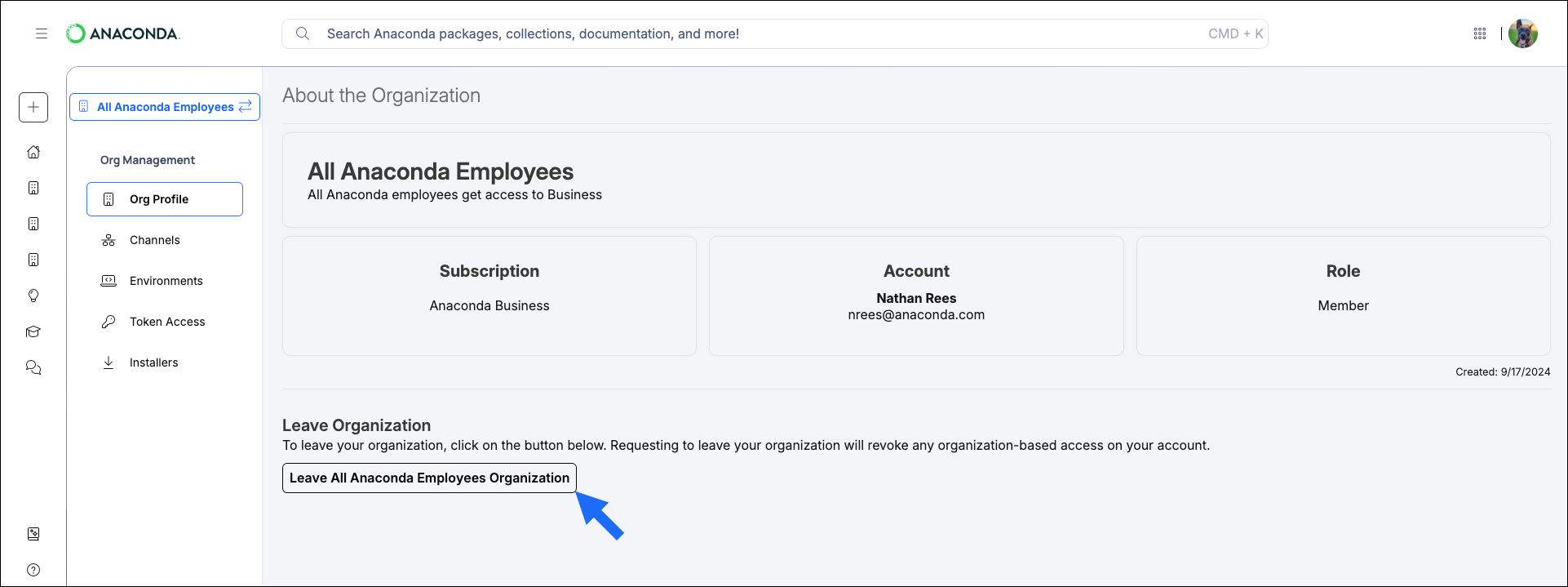
To leave an organization you're a member of:
1. [Navigate to your Organizations page](https://anaconda.com/app/profile/organizations).
2. Select your organization.
3. Click **Leave `` Organization**.
 Users with the administrator role cannot leave the organization.
***
Enterprise managed users cannot leave their organization because their IT administrator governs their account through the organization's identity provider.
Users with the administrator role cannot leave the organization.
***
Enterprise managed users cannot leave their organization because their IT administrator governs their account through the organization's identity provider.