> ## Documentation Index
> Fetch the complete documentation index at: https://anaconda.com/docs/llms.txt
> Use this file to discover all available pages before exploring further.
# Browsing environments
export const DefinitionDescription = ({children}) => {children};
export const DefinitionTerm = ({children}) => {children};
export const DefinitionList = ({children}) => {children}
;
Anaconda.org hosts a curated collection of conda environments built by Anaconda for common use cases. You can browse and install these environments with a single command. Browsing environments does not require an account.
## Searching for environments
Search for environments by name, description, included packages, or tag using the search bar.
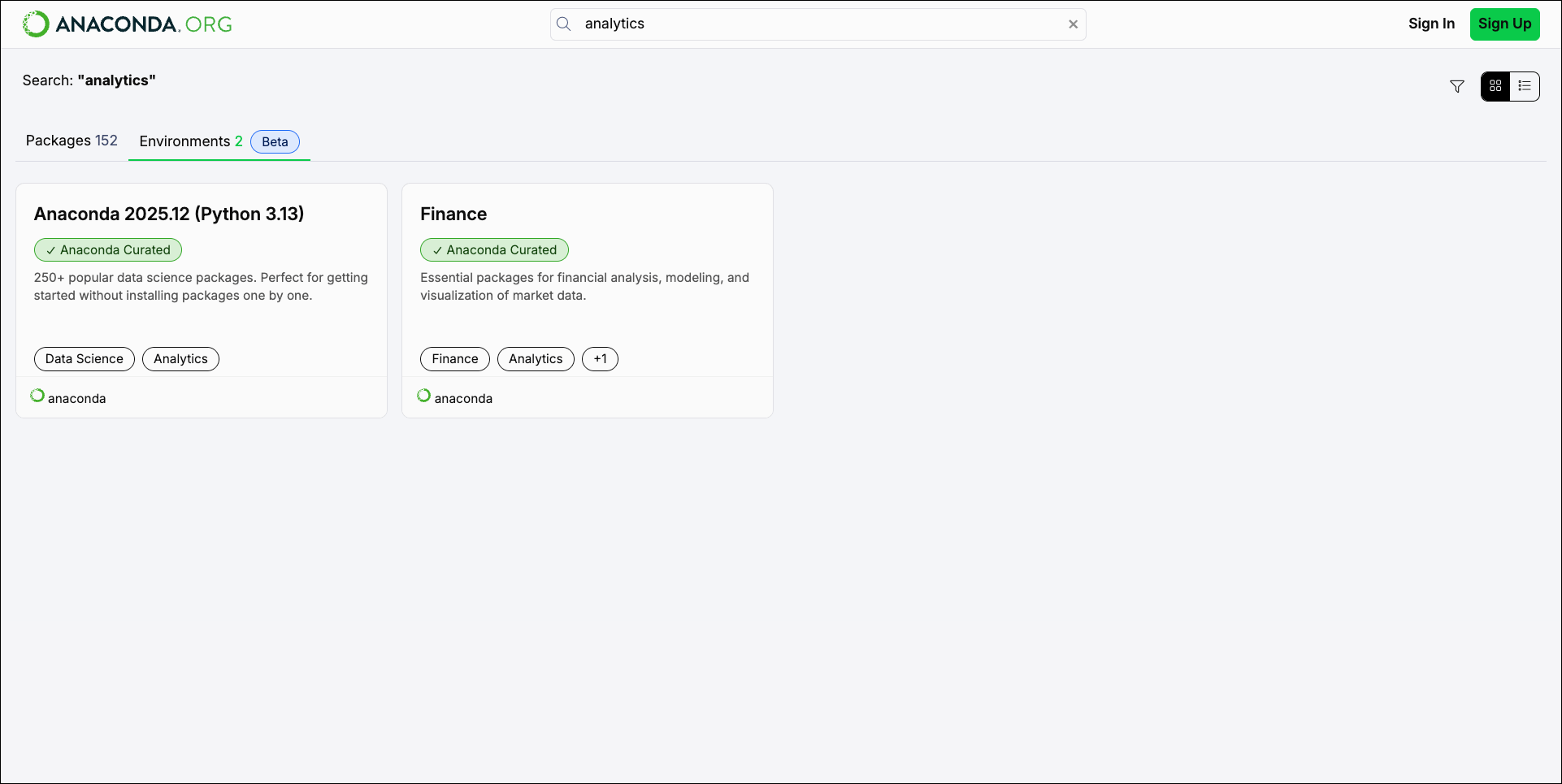 Select the filter icon to open the **All Filters** menu. From here, you can filter your search results using the following options:
Source
Filter for environments curated by Anaconda or created by the community.
Community-created environments are coming soon.
Tag
The tags associated with environments, such as `Deep Learning`, `Data Science`, `Finance`, or `Starter`.
Platform
The platform or system architecture the environment supports (for example, `linux-64`, `osx-arm64`, `win-64`).
## Viewing environment details
Select an environment card to view its details.
Select the filter icon to open the **All Filters** menu. From here, you can filter your search results using the following options:
Source
Filter for environments curated by Anaconda or created by the community.
Community-created environments are coming soon.
Tag
The tags associated with environments, such as `Deep Learning`, `Data Science`, `Finance`, or `Starter`.
Platform
The platform or system architecture the environment supports (for example, `linux-64`, `osx-arm64`, `win-64`).
## Viewing environment details
Select an environment card to view its details.
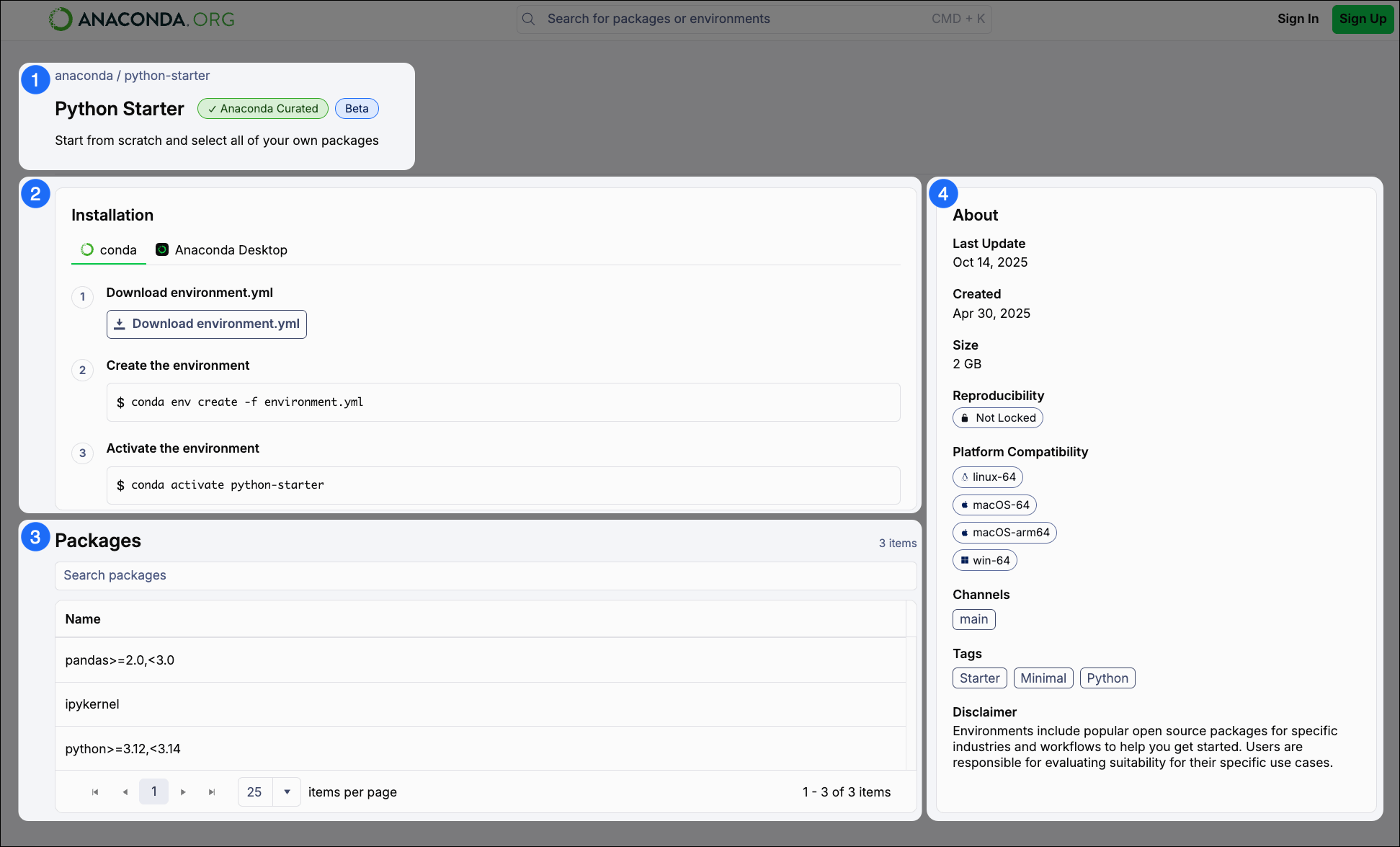 This section contains:
* Breadcrumbs linking back to the environment's organization (organization / environment). Select the organization to [view its channel homepage](/docs/anaconda-org/searching-packages#viewing-channel-information).
* The name of the environment.
* A badge describing that the environment is Anaconda Curated.
* A short environment description.
Commands to install the environment with conda. Click **Download environment.yml** to download the environment's `.yml` file to your computer.
The downloaded `environment.yml` file is saved to your Downloads folder. To use the install command as-is, either move the file to your current working directory or specify the full path to the file:
```sh theme={null}
conda env create -f %USERPROFILE%\Downloads\environment.yml
```
```sh theme={null}
conda env create -f ~/Downloads/environment.yml
```
Installation instructions for Anaconda Desktop are coming soon!
The full list of packages included in the environment, with version specifications as necessary.
General information about the selected environment, including the date and time when the environment was last updated, whether or not the environment contains a lockfile, supported (and unsupported) platforms and architectures, channels the environment uses, and tags associated with the environment.
This section contains:
* Breadcrumbs linking back to the environment's organization (organization / environment). Select the organization to [view its channel homepage](/docs/anaconda-org/searching-packages#viewing-channel-information).
* The name of the environment.
* A badge describing that the environment is Anaconda Curated.
* A short environment description.
Commands to install the environment with conda. Click **Download environment.yml** to download the environment's `.yml` file to your computer.
The downloaded `environment.yml` file is saved to your Downloads folder. To use the install command as-is, either move the file to your current working directory or specify the full path to the file:
```sh theme={null}
conda env create -f %USERPROFILE%\Downloads\environment.yml
```
```sh theme={null}
conda env create -f ~/Downloads/environment.yml
```
Installation instructions for Anaconda Desktop are coming soon!
The full list of packages included in the environment, with version specifications as necessary.
General information about the selected environment, including the date and time when the environment was last updated, whether or not the environment contains a lockfile, supported (and unsupported) platforms and architectures, channels the environment uses, and tags associated with the environment.