> ## Documentation Index
> Fetch the complete documentation index at: https://anaconda.com/docs/llms.txt
> Use this file to discover all available pages before exploring further.
# How to open JupyterLab with Anaconda Desktop
JupyterLab is a web-based interactive development environment for designing and configuring workflows for data science, scientific computing, and machine learning. You can write your code, visualize the data as charts and tables, and document your findings in plain text, all in one file.
JupyterLab is a notebook editing interface with file browsing capabilities, like an IDE. It is highly extensible and allows you to work with multiple notebooks, terminals, and other documents in tabs and panes that can be dragged and dropped into different, flexible configurations. It is ideal for larger, more complex projects.
Jupyter Notebook is a simple, single-document interface. It is lighter weight and faster to load than JupyterLab and allows you to focus on one notebook at a time without all the extra noise of a complex interface. It is ideal for basic notebook work and learning. In Desktop, access Jupyter Notebook from the [Application Catalog](/docs/tools/anaconda-desktop/application-catalog).
Learn how to use JupyterLab or Jupyter Notebook in the official JupyterLab documentation.
* [JupyterLab's User Guide](https://jupyterlab.readthedocs.io/en/latest/user/index.html)
* [Jupyter Notebook Documentation](https://jupyter-notebook.readthedocs.io/en/latest/)
## Opening JupyterLab
Make sure you have [Anaconda Desktop installed](/docs/tools/anaconda-desktop/install-desktop).
From the **Dashboard** in Anaconda Desktop, select the **JupyterLab** tile.
If the **JupyterLab** tile isn't on your Dashboard, click **View All** to open the [Application Catalog](/docs/tools/anaconda-desktop/application-catalog) and install it. Once installed, the tile will appear on your Dashboard.
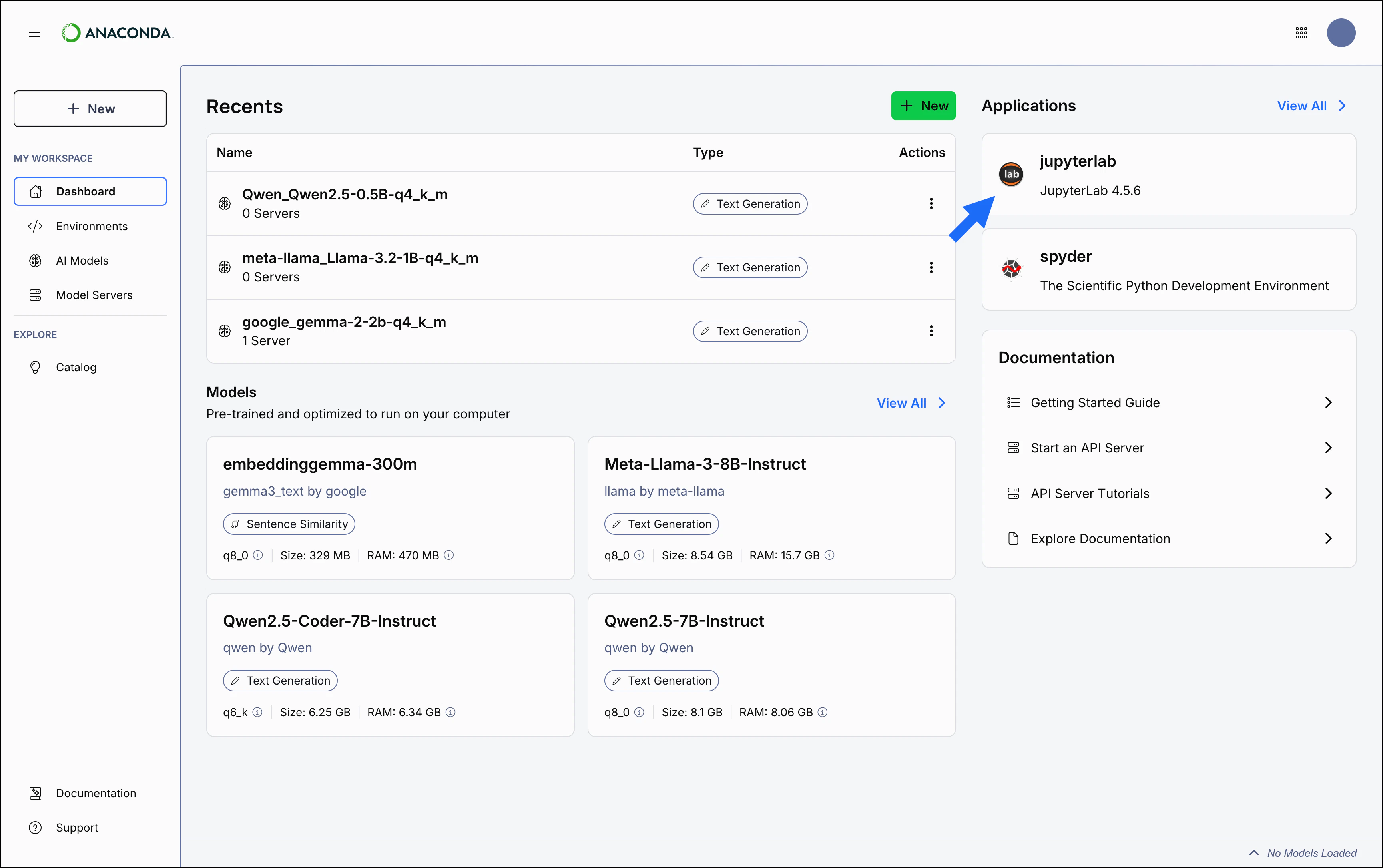 JupyterLab opens in a new tab in your default browser.
You can also launch JupyterLab from the **Applications** tab in the **Catalog**. For more information about JupyterLab and other available applications, see [Application Catalog](/docs/tools/anaconda-desktop/application-catalog).
## Explore more with Anaconda Notebooks
Anaconda's JupyterLab service, [Anaconda Notebooks](/docs/tools/anaconda-notebooks/getting-started), provides you with:
* [Anaconda Assistant](/docs/tools/anaconda-notebooks/anaconda-toolbox/anaconda-assistant), an AI-powered chat app that can help you quickly get up and running with your code.
* [Cloud storage](/docs/tools/anaconda-notebooks/notebook-storage-memory), up to 5GB. You can [upload](/docs/tools/anaconda-notebooks/notebook-faq#how-do-i-upload-a-notebook-to-the-service) any of your local notebooks to Anaconda Notebook's cloud interface or add your local notebooks to [Anaconda Projects](/docs/tools/anaconda-notebooks/anaconda-toolbox/using-projects) and work both locally and in the cloud.
* [Code snippets](/docs/tools/anaconda-notebooks/anaconda-toolbox/code-snippets), which enable you to save and share reusable blocks of code.
* [Notebook deployments](/docs/tools/anaconda-notebooks/publishing-notebooks) as Panel applications, so you can share your work interactively with colleagues.
Create a free account on anaconda.com to get started with Anaconda Notebooks. Upgrade to a Starter subscription for additional storage, deployments, and more. For more information, see [pricing](https://www.anaconda.com/pricing).
JupyterLab opens in a new tab in your default browser.
You can also launch JupyterLab from the **Applications** tab in the **Catalog**. For more information about JupyterLab and other available applications, see [Application Catalog](/docs/tools/anaconda-desktop/application-catalog).
## Explore more with Anaconda Notebooks
Anaconda's JupyterLab service, [Anaconda Notebooks](/docs/tools/anaconda-notebooks/getting-started), provides you with:
* [Anaconda Assistant](/docs/tools/anaconda-notebooks/anaconda-toolbox/anaconda-assistant), an AI-powered chat app that can help you quickly get up and running with your code.
* [Cloud storage](/docs/tools/anaconda-notebooks/notebook-storage-memory), up to 5GB. You can [upload](/docs/tools/anaconda-notebooks/notebook-faq#how-do-i-upload-a-notebook-to-the-service) any of your local notebooks to Anaconda Notebook's cloud interface or add your local notebooks to [Anaconda Projects](/docs/tools/anaconda-notebooks/anaconda-toolbox/using-projects) and work both locally and in the cloud.
* [Code snippets](/docs/tools/anaconda-notebooks/anaconda-toolbox/code-snippets), which enable you to save and share reusable blocks of code.
* [Notebook deployments](/docs/tools/anaconda-notebooks/publishing-notebooks) as Panel applications, so you can share your work interactively with colleagues.
Create a free account on anaconda.com to get started with Anaconda Notebooks. Upgrade to a Starter subscription for additional storage, deployments, and more. For more information, see [pricing](https://www.anaconda.com/pricing).