> ## Documentation Index
> Fetch the complete documentation index at: https://anaconda.com/docs/llms.txt
> Use this file to discover all available pages before exploring further.
# Anaconda MCP
export const Comments = ({children}) => {
return ;
};
export const GCell = ({children, className}) =>
{children}
;
export const GTH = ({children, className}) =>
{children}
;
export const GRow = ({children}) => {children}
;
export const GBody = ({children}) => {children}
;
export const GHead = ({children}) => {children}
;
export const GTable = ({children, className, cols}) =>
{children}
;
Anaconda MCP is a Model Context Protocol (MCP) server that gives AI coding assistants full awareness of your conda environments, packages, and channel configurations. Once connected, you can create environments, install packages, and manage dependencies using natural language directly from your AI coding assistant.
Anaconda MCP currently supports the following assistants: Claude Desktop, Claude Code, Cursor, VS Code, Opencode, and Windsurf.
## Prerequisites
You must have at least one supported AI coding assistant installed on your machine.
## Connecting Anaconda MCP
**MCP** is displayed in the left-hand navigation by default. Disable it on the [Settings](/docs/anaconda-desktop/settings#enabling-beta-features) page. If you belong to an organization, your administrator may restrict access to beta features.
1. Select **MCP** under **BETA** in the left-hand navigation.
2. Toggle on the AI coding assistant you want to configure.
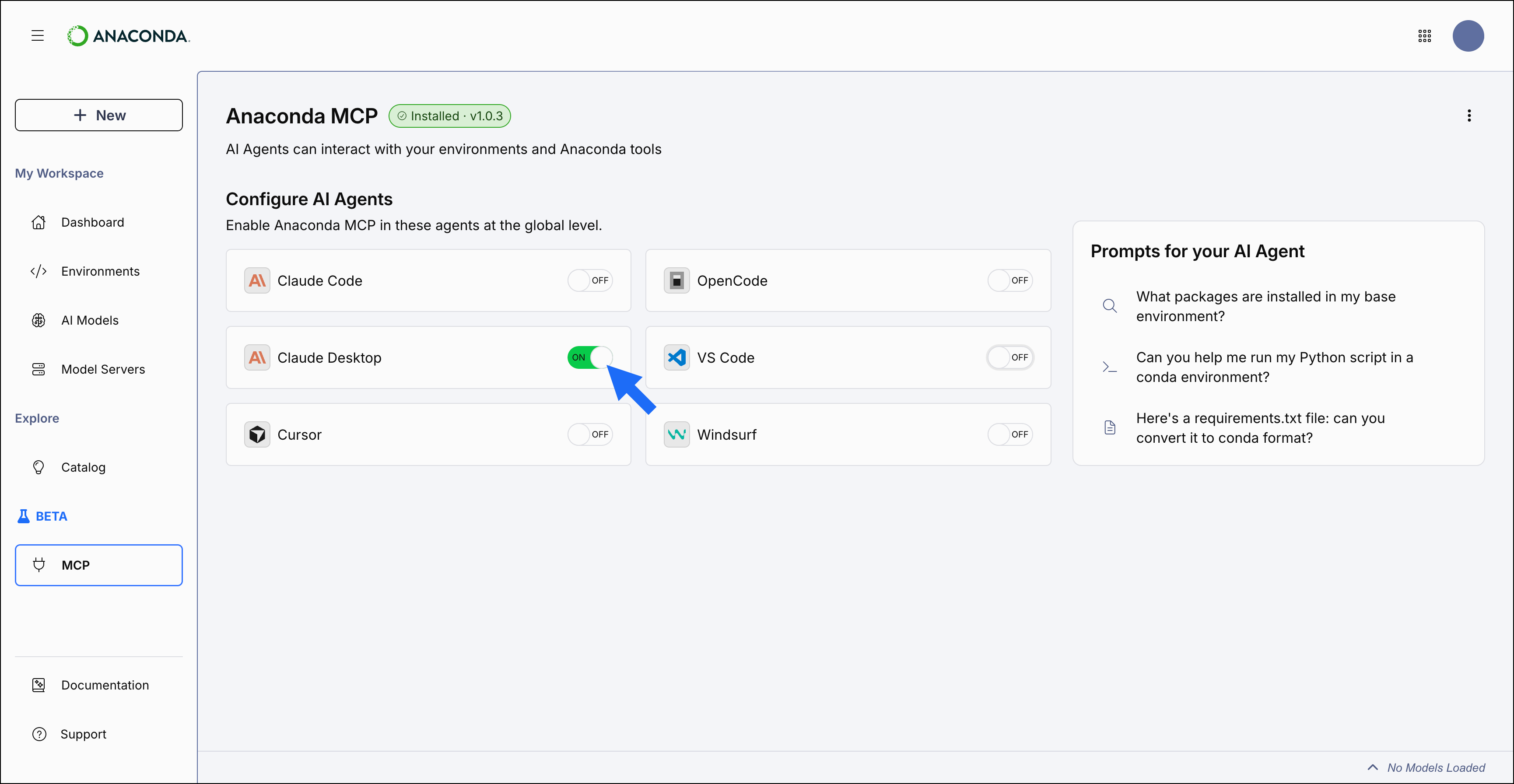 Anaconda Desktop installs the `anaconda-mcp` package into a new [environment](/docs/anaconda-desktop/environments) called `anaconda-mcp` and configures the selected assistant automatically. A confirmation message appears when setup is complete.
Quit and restart your AI coding assistant for the changes to take effect.
Ask your assistant something like "List my conda environments" to verify that Anaconda MCP is connected and responding.
Alternatively, you can verify the MCP server is running by checking the settings in your AI coding assistant's configuration. For example, in Claude Desktop, navigate to **Settings** > **Developer** > **Local MCP Servers** and look for **anaconda-mcp**.
You can add "In conda" or "Using the conda server" to your prompts to ensure requests are routed to the Anaconda MCP server.
Open Anaconda Prompt (Terminal on macOS/Linux).
```sh theme={null}
conda create --name anaconda-mcp
```
Replace `` with the name of the new environment.
Anaconda recommends installing `anaconda-mcp` in its own dedicated environment rather than `base` to avoid Python version and dependency conflicts.
```sh theme={null}
conda activate
```
Replace `` with the name of the environment where you installed `anaconda-mcp`.
```sh theme={null}
anaconda mcp setup
```
The wizard prompts you to select your AI coding assistant and whether to configure it at a global or project level. If you're not logged in to your anaconda.com account, the wizard prompts you to log in. You're also prompted to agree to the [Anaconda MCP Beta Agreement](https://www.anaconda.com/legal/terms/mcpbeta) the first time you run this command.
Quit and restart your AI coding assistant for the changes to take effect.
For full CLI reference documentation, see the [Anaconda MCP CLI reference](/docs/cli-reference/anaconda-mcp/getting-started).
## Capabilities
Anaconda MCP exposes the following conda environment and package management capabilities:
Capability
Natural language prompt example
**Create a new environment**
"Create a new conda environment named `my-env` with Python 3.10 and numpy."
**List all environments**
"Show all my conda environments."
**Show environment details**
"What packages are installed in the `my-env` environment?"
**Install, update, or remove packages**
"Add pandas and matplotlib to `my-env`."
**Search for packages**
"Find all available versions of scikit-learn."
**Remove an environment**
"Delete the environment called `oldenv`."
**Search packages on Anaconda.org**
"Find me the latest version of `scikit-learn` available on the main channel."
**Search notebooks and collections on nb.anaconda.com, pyscript.com, and Anaconda Toolbox**
"Find my Jupyter notebook on nb.anaconda.com where I built a time series forecasting model so I can reuse that analysis."
**Search Anaconda documentation**
"Search the Anaconda docs to show me how to configure conda to use my organization channel as the only channel I install packages from."
**Search the Anaconda community forum**
"Search the Anaconda forum to see if anyone else has run into CUDA version conflicts when installing PyTorch."
Anaconda Desktop installs the `anaconda-mcp` package into a new [environment](/docs/anaconda-desktop/environments) called `anaconda-mcp` and configures the selected assistant automatically. A confirmation message appears when setup is complete.
Quit and restart your AI coding assistant for the changes to take effect.
Ask your assistant something like "List my conda environments" to verify that Anaconda MCP is connected and responding.
Alternatively, you can verify the MCP server is running by checking the settings in your AI coding assistant's configuration. For example, in Claude Desktop, navigate to **Settings** > **Developer** > **Local MCP Servers** and look for **anaconda-mcp**.
You can add "In conda" or "Using the conda server" to your prompts to ensure requests are routed to the Anaconda MCP server.
Open Anaconda Prompt (Terminal on macOS/Linux).
```sh theme={null}
conda create --name anaconda-mcp
```
Replace `` with the name of the new environment.
Anaconda recommends installing `anaconda-mcp` in its own dedicated environment rather than `base` to avoid Python version and dependency conflicts.
```sh theme={null}
conda activate
```
Replace `` with the name of the environment where you installed `anaconda-mcp`.
```sh theme={null}
anaconda mcp setup
```
The wizard prompts you to select your AI coding assistant and whether to configure it at a global or project level. If you're not logged in to your anaconda.com account, the wizard prompts you to log in. You're also prompted to agree to the [Anaconda MCP Beta Agreement](https://www.anaconda.com/legal/terms/mcpbeta) the first time you run this command.
Quit and restart your AI coding assistant for the changes to take effect.
For full CLI reference documentation, see the [Anaconda MCP CLI reference](/docs/cli-reference/anaconda-mcp/getting-started).
## Capabilities
Anaconda MCP exposes the following conda environment and package management capabilities:
Capability
Natural language prompt example
**Create a new environment**
"Create a new conda environment named `my-env` with Python 3.10 and numpy."
**List all environments**
"Show all my conda environments."
**Show environment details**
"What packages are installed in the `my-env` environment?"
**Install, update, or remove packages**
"Add pandas and matplotlib to `my-env`."
**Search for packages**
"Find all available versions of scikit-learn."
**Remove an environment**
"Delete the environment called `oldenv`."
**Search packages on Anaconda.org**
"Find me the latest version of `scikit-learn` available on the main channel."
**Search notebooks and collections on nb.anaconda.com, pyscript.com, and Anaconda Toolbox**
"Find my Jupyter notebook on nb.anaconda.com where I built a time series forecasting model so I can reuse that analysis."
**Search Anaconda documentation**
"Search the Anaconda docs to show me how to configure conda to use my organization channel as the only channel I install packages from."
**Search the Anaconda community forum**
"Search the Anaconda forum to see if anyone else has run into CUDA version conflicts when installing PyTorch."